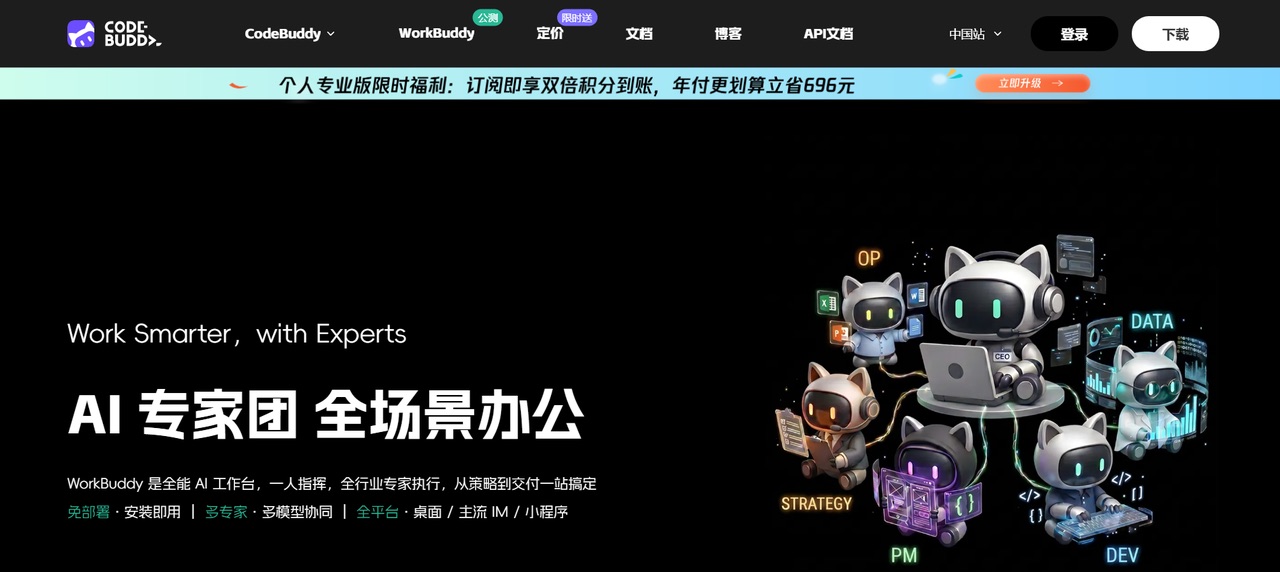
Tencent WorkBuddy Guide: Installation, Skills, Expert Agents, and Automation
A practical guide to Tencent WorkBuddy, covering installation, task execution, model selection, Skills, Claw remote control, expert agents, connectors, and scheduled automation.
Contents
English Version
Updated: 2026-05-27 Original source: CSDN - zhangcongyi420 Copyright note: the original post is published under the CC 4.0 BY-SA license. This version has been rewritten and reorganized for Finding AI Tools, with screenshots retained from the original walkthrough and placed next to the relevant steps.
WorkBuddy is Tencent's desktop AI agent workspace for office scenarios. It is not positioned as a simple chatbot. The point is to let an AI agent participate directly in desktop workflows: understand a request, break it into steps, call skills, operate on local files, and save usable output back to the computer.
If your work involves documents, spreadsheets, research notes, emails, or recurring reports, WorkBuddy is closer to an executable desktop assistant than a Q&A tool. The sections below follow the actual usage path from installation to automation.
What WorkBuddy Is Good For
WorkBuddy's core value is turning a natural-language request into an executable task. Common use cases include:
- generating work reports, technical documents, meeting notes, and README files
- analyzing spreadsheet data and producing charts or conclusions
- turning source material into slides, research reports, or product documents
- batch organizing, renaming, or converting local files
- assisting with project understanding, bug fixing, and code generation in programming mode
- connecting to email, documents, project management tools, and other external services
- turning daily summaries, weekly reports, and news digests into scheduled automation
Compared with a normal AI chat product, WorkBuddy focuses more on execution. With the right permissions, it can read local directories, generate files, call Skills, and deliver something you can inspect.
Download and Installation
The official download entry is available on the WorkBuddy website. Choose the Windows or macOS installer according to your device.
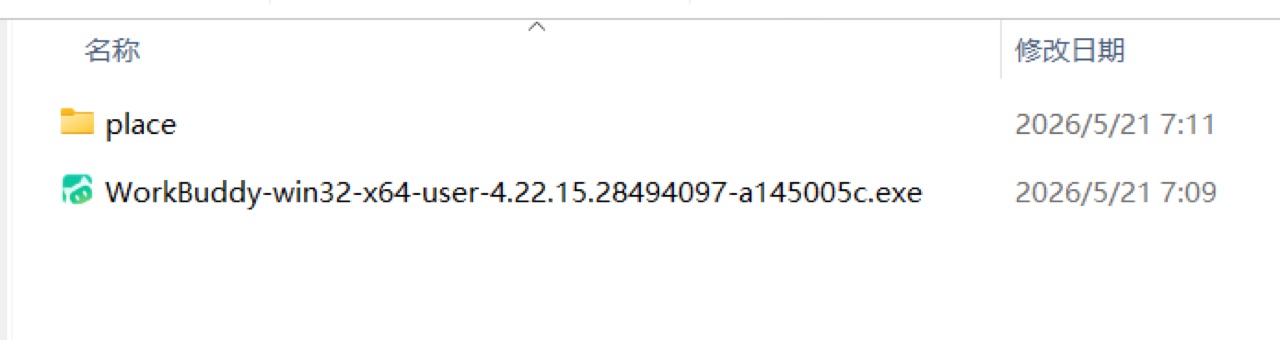
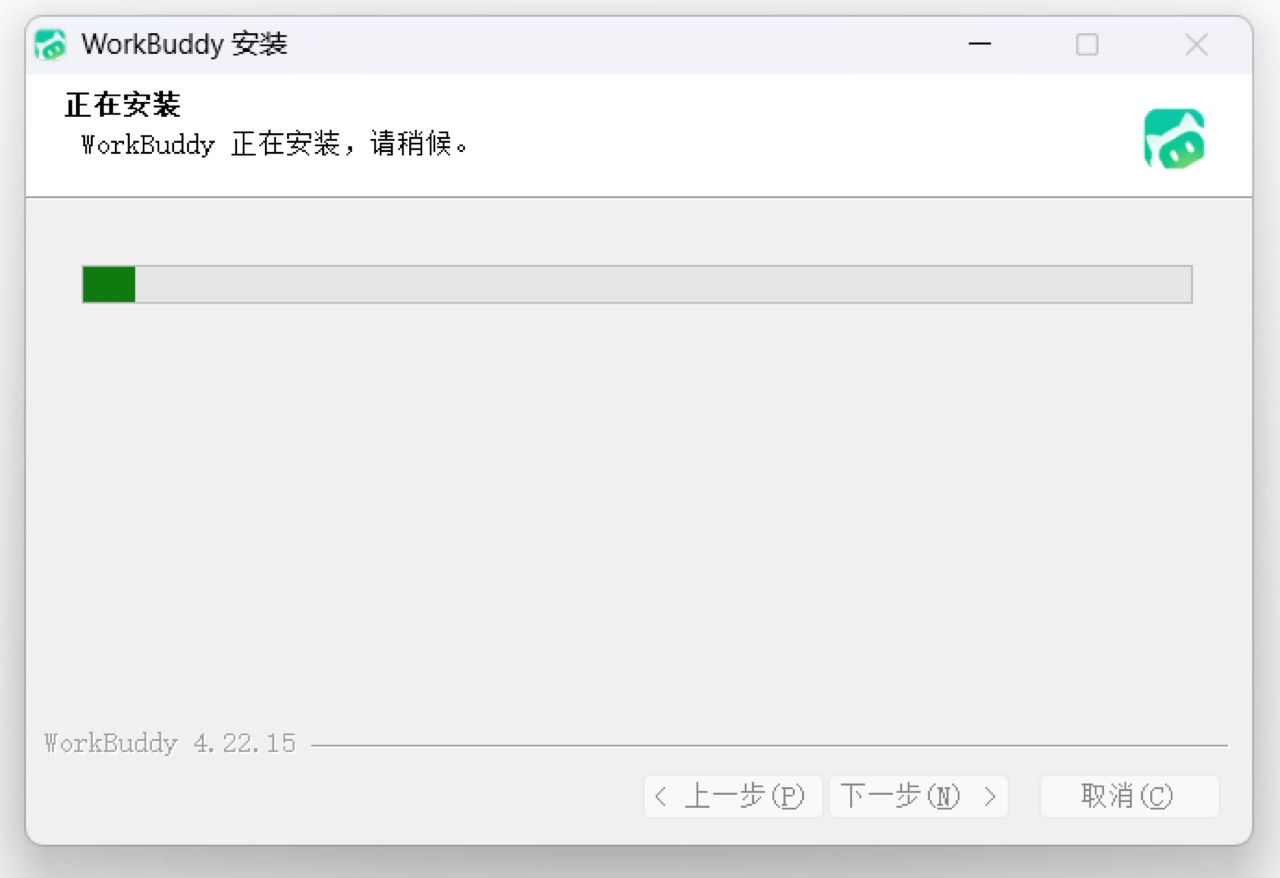
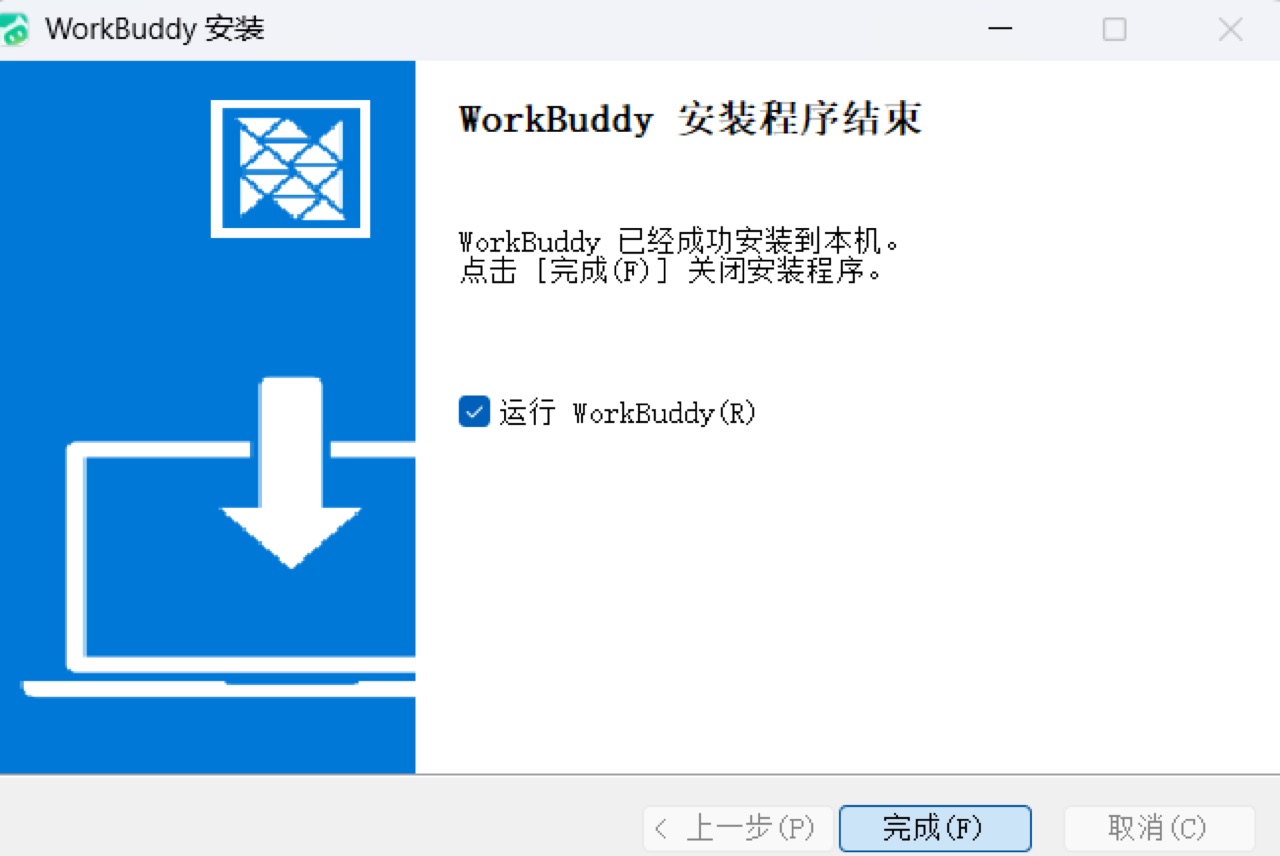
The installation process is straightforward. For a first install, keeping the default path is usually better, because it makes later troubleshooting and output directory checks easier.
Login and Main Interface
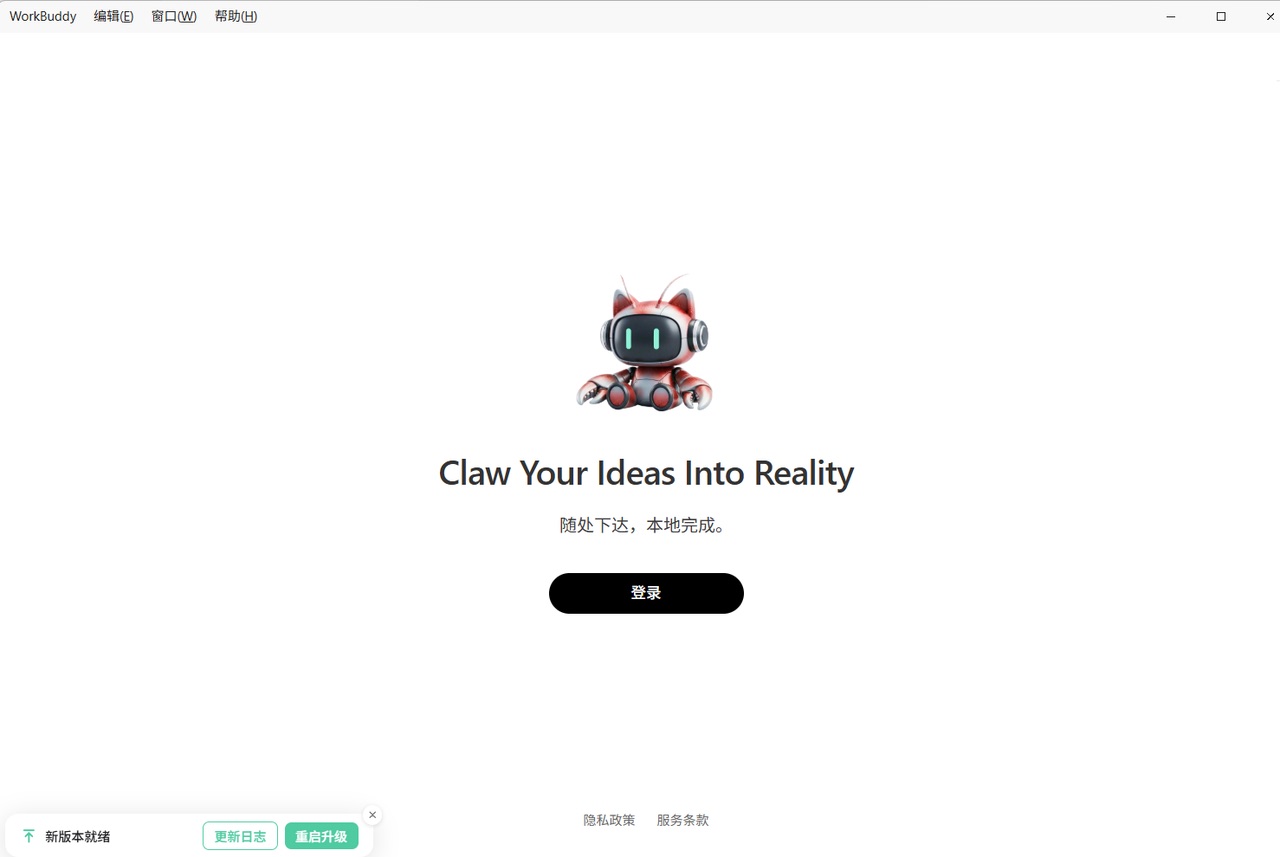
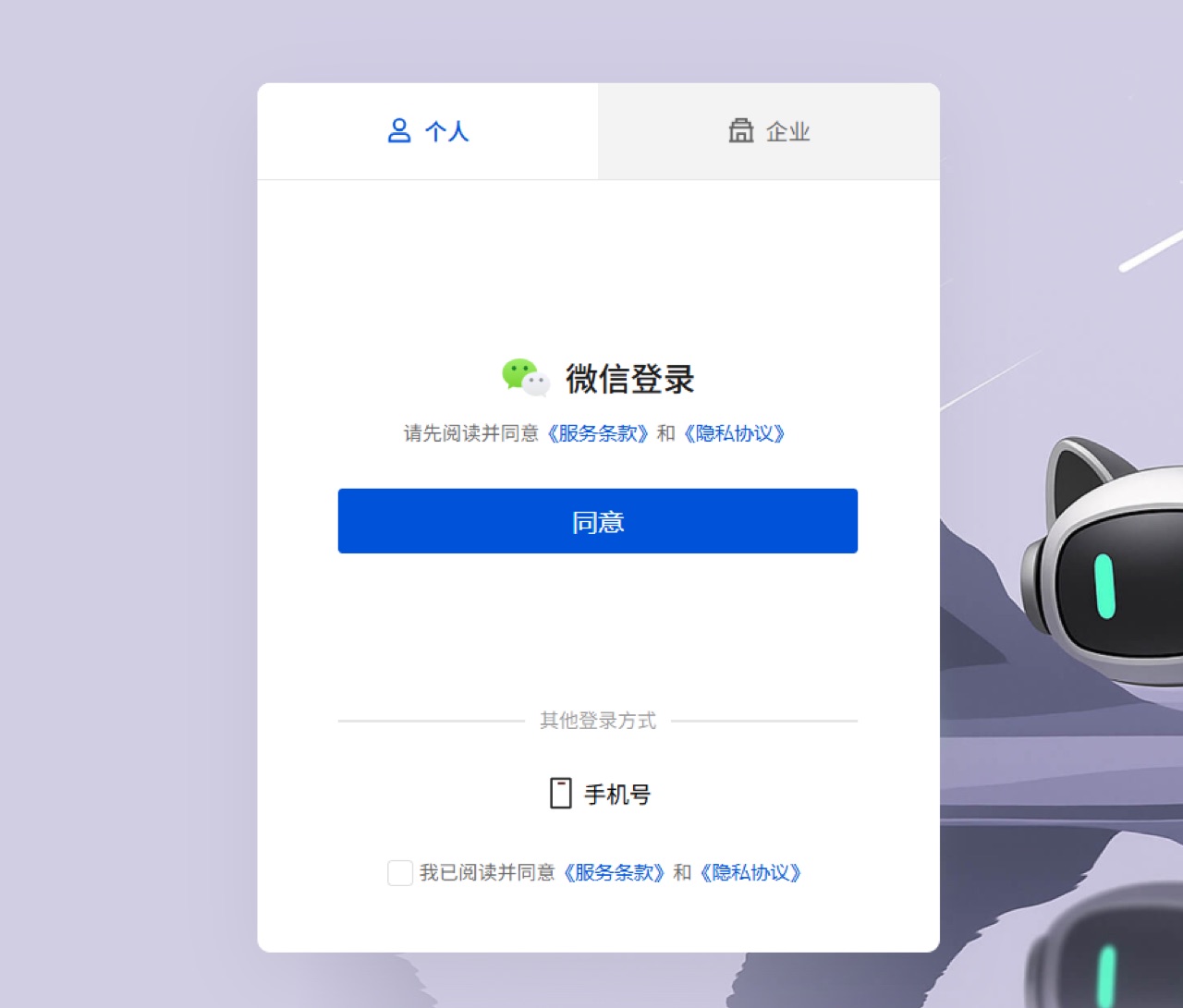
After opening WorkBuddy, you first land on the login screen. The current flow mainly uses WeChat login.
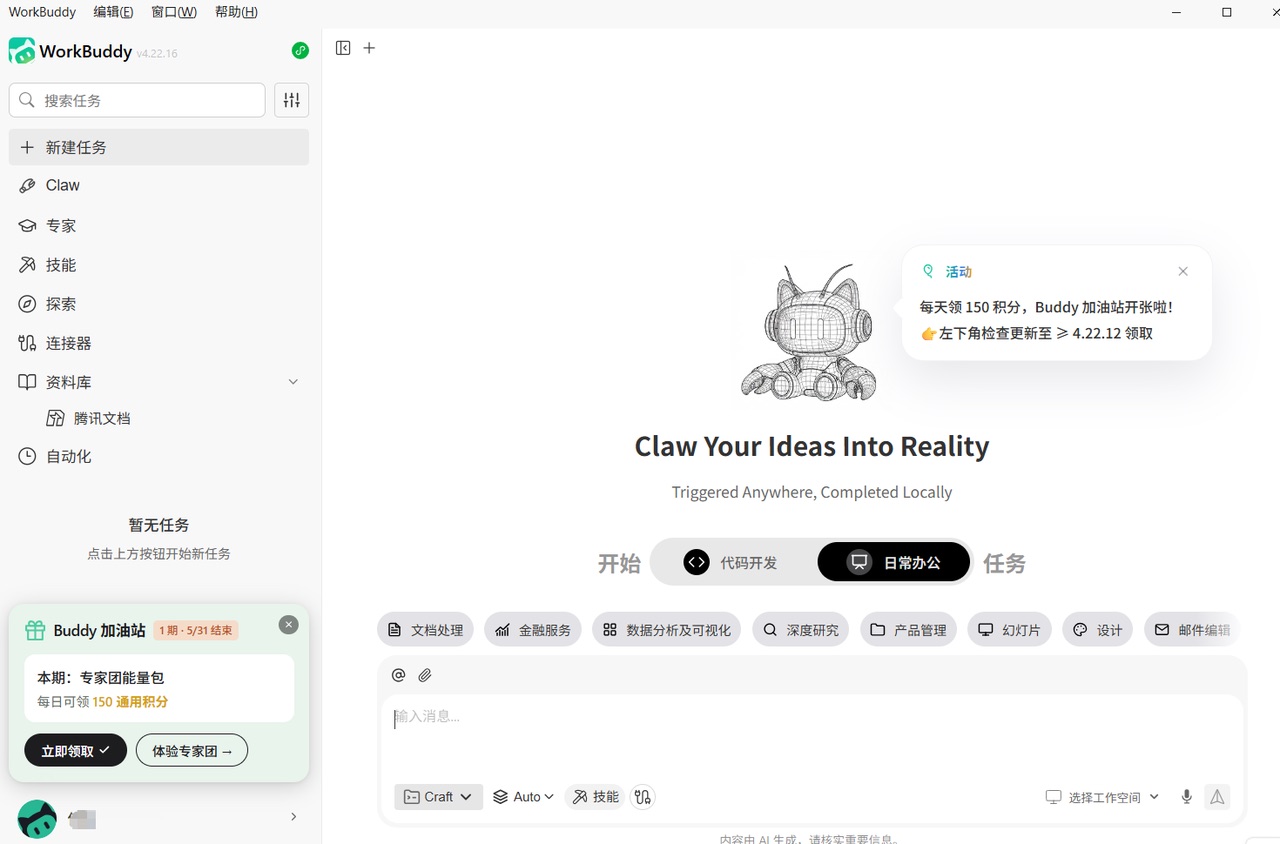
After login, the main workspace appears. The left side contains navigation, the center is the task conversation area, and the bottom input area lets you enter instructions, switch models, or call Skills.
Start a Task with One Sentence
The simplest way to use WorkBuddy is to describe a task the way you would explain it to a colleague. For example:
Research AI office automation trends in 2026, summarize them into a report under 1,000 words, and save it to my specified local folder.
Tasks like this usually go through several phases: understanding the request, planning the steps, calling tools, and generating files. The execution log is useful because it shows what the agent is doing instead of hiding the process.
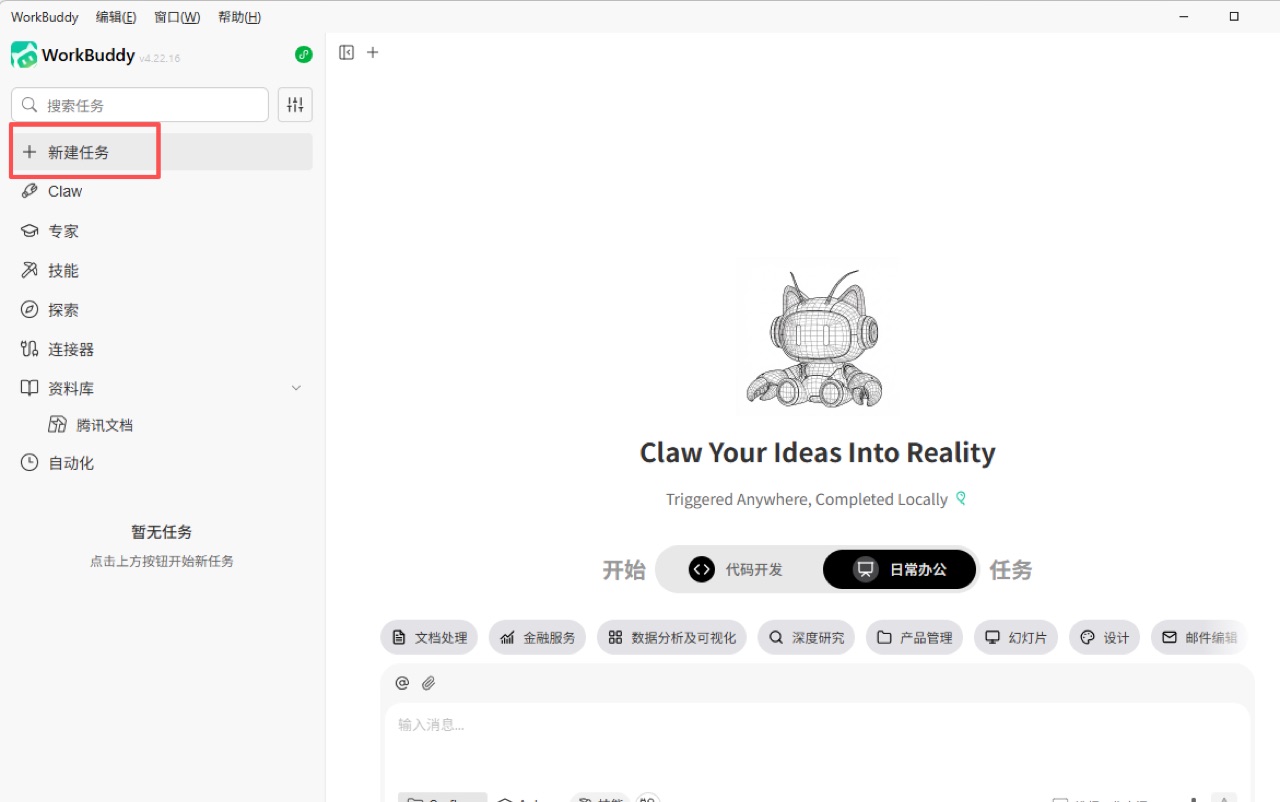
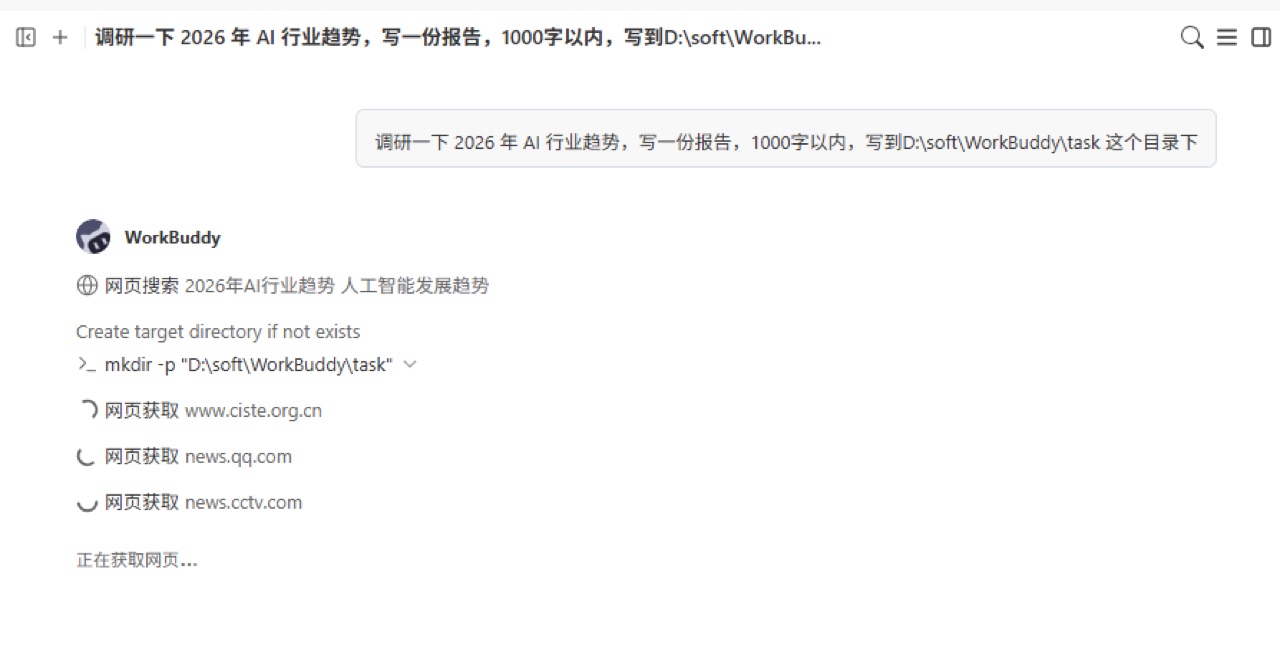
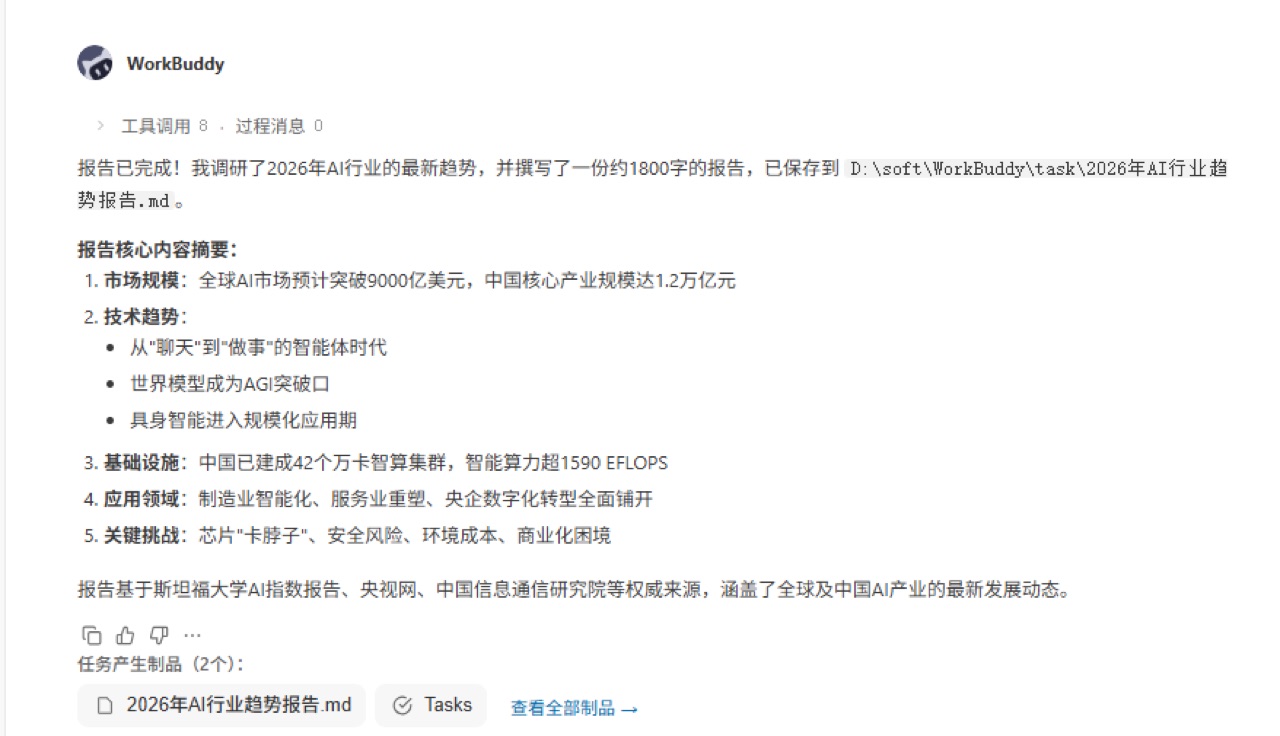
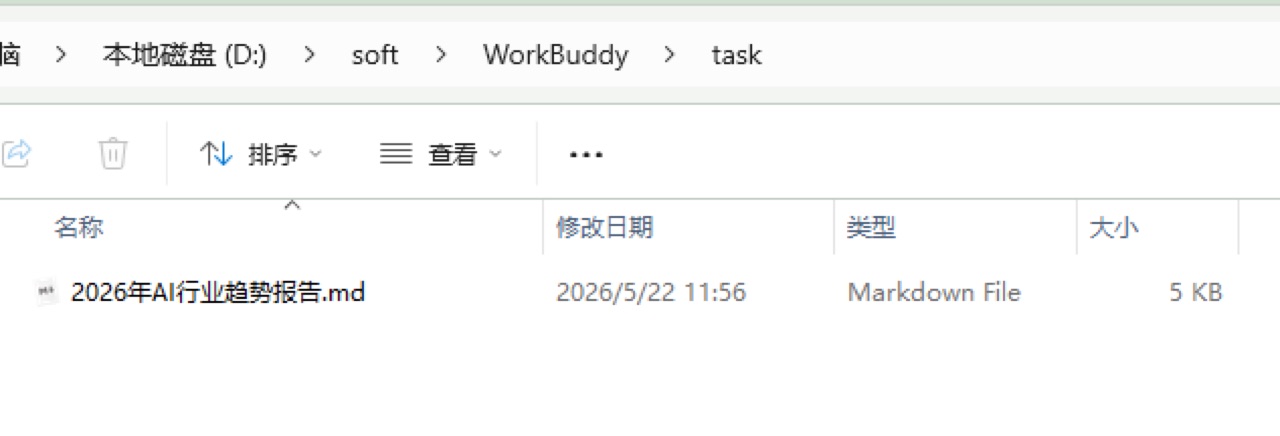
When the task finishes, the result is saved locally. This is the main difference from a normal chat interface: the target is not just a text answer, but an output file you can review.
Model Switching
WorkBuddy lets you switch between different AI models in the conversation box. Lightweight tasks can use faster models, while long documents, analysis, and coding tasks are better suited to stronger reasoning models.
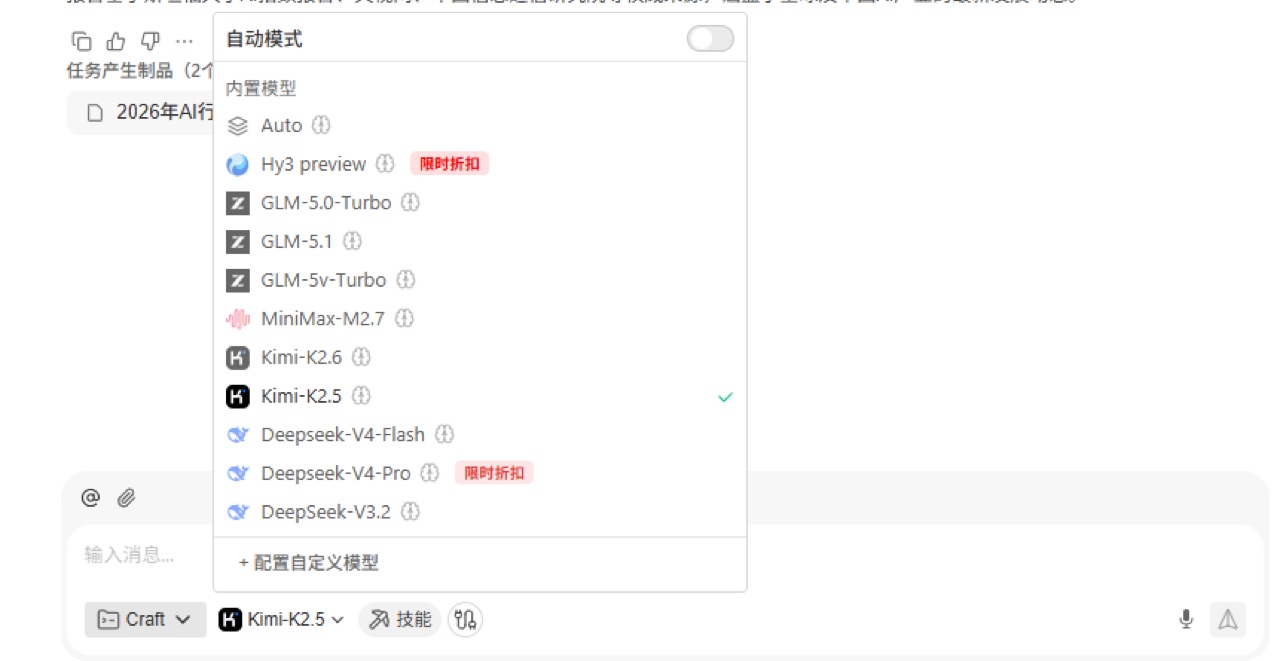
A practical selection rule:
- daily Q&A and simple organization: prioritize speed
- reports, plans, and product documents: prioritize stability and long-context handling
- code and complex data analysis: prioritize reasoning and tool-use ability
Skills: Turn Repeated Workflows into Reusable Modules
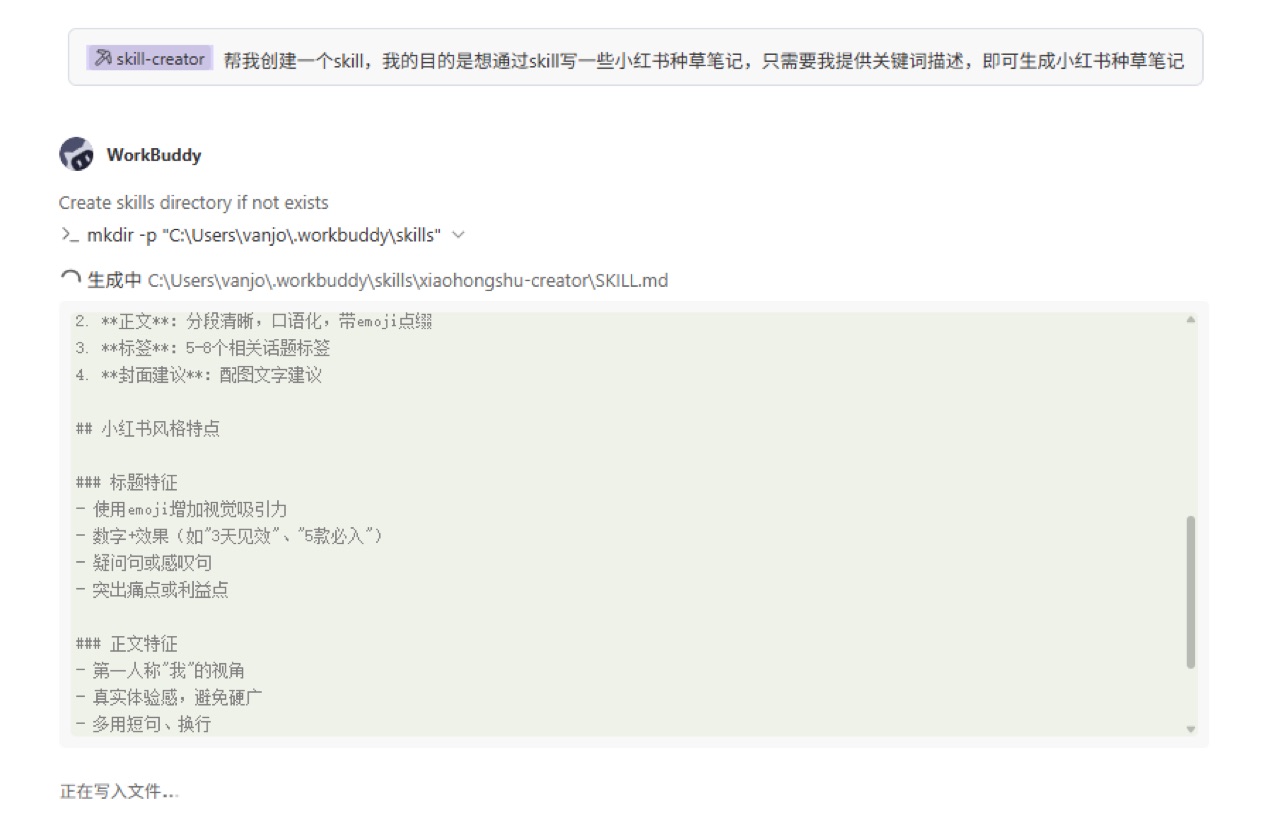
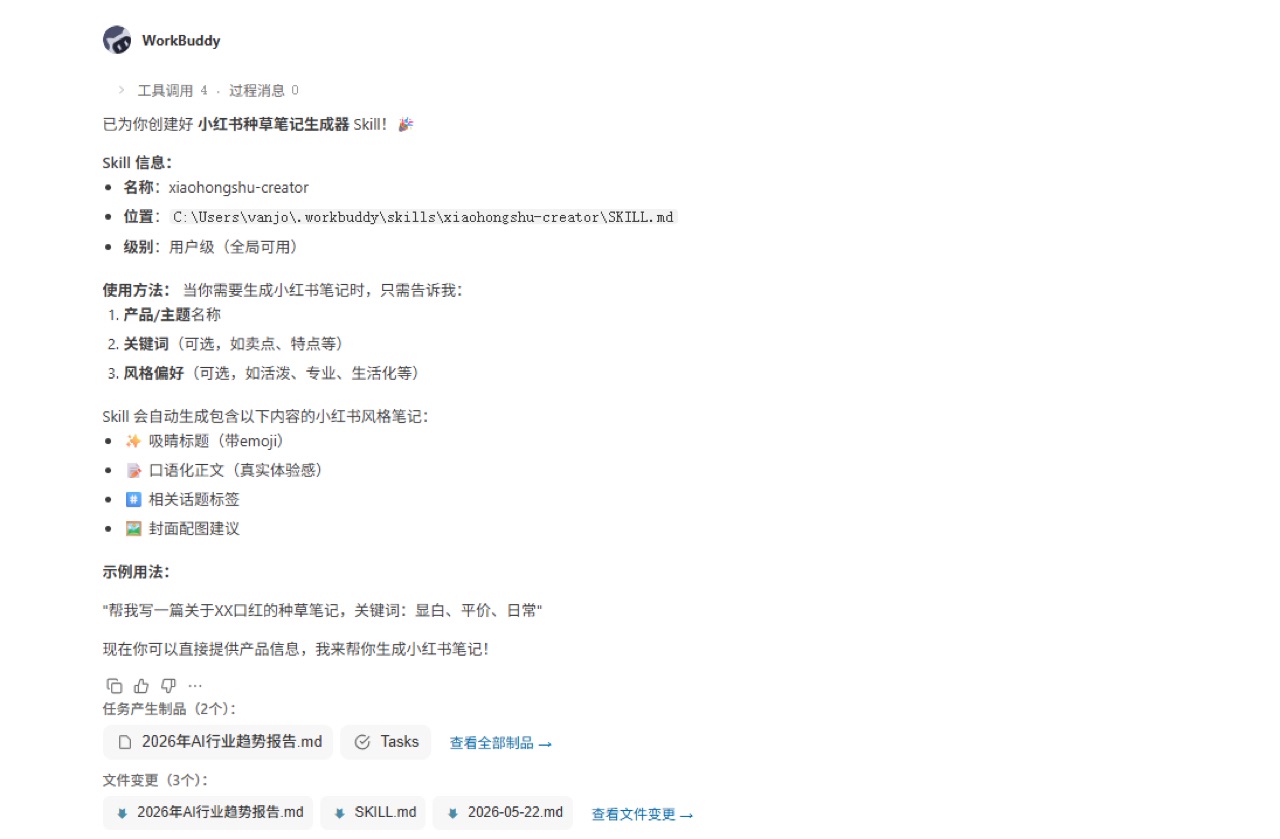
Skills are one of WorkBuddy's key features. You can create your own Skills for repeated workflows, or install existing Skills from the marketplace. This avoids writing a long prompt every time you do the same type of work.
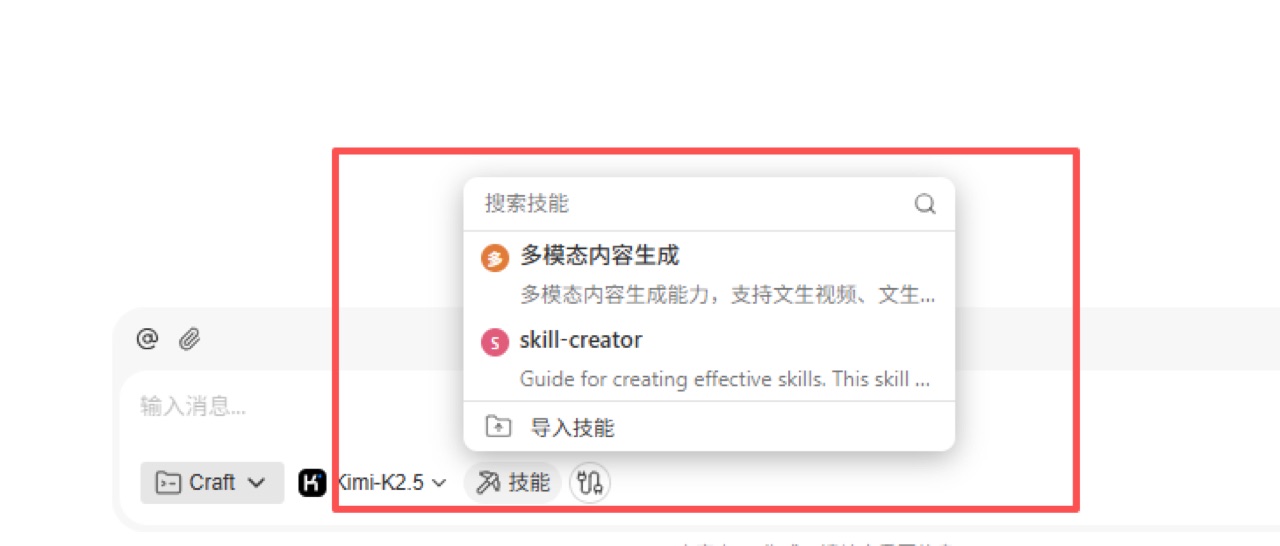
For example, if you often write Xiaohongshu-style product notes, you can create a dedicated Skill. Later, you only need to provide keywords or a product description, and the Skill will generate the content using a stable structure.
Claw: Remote Control and Mobile Task Triggering
Claw is WorkBuddy's remote task entry point. After binding tools such as WeChat, WeCom, QQ, Feishu, or DingTalk, you can send instructions from your phone even when you are away from the computer.
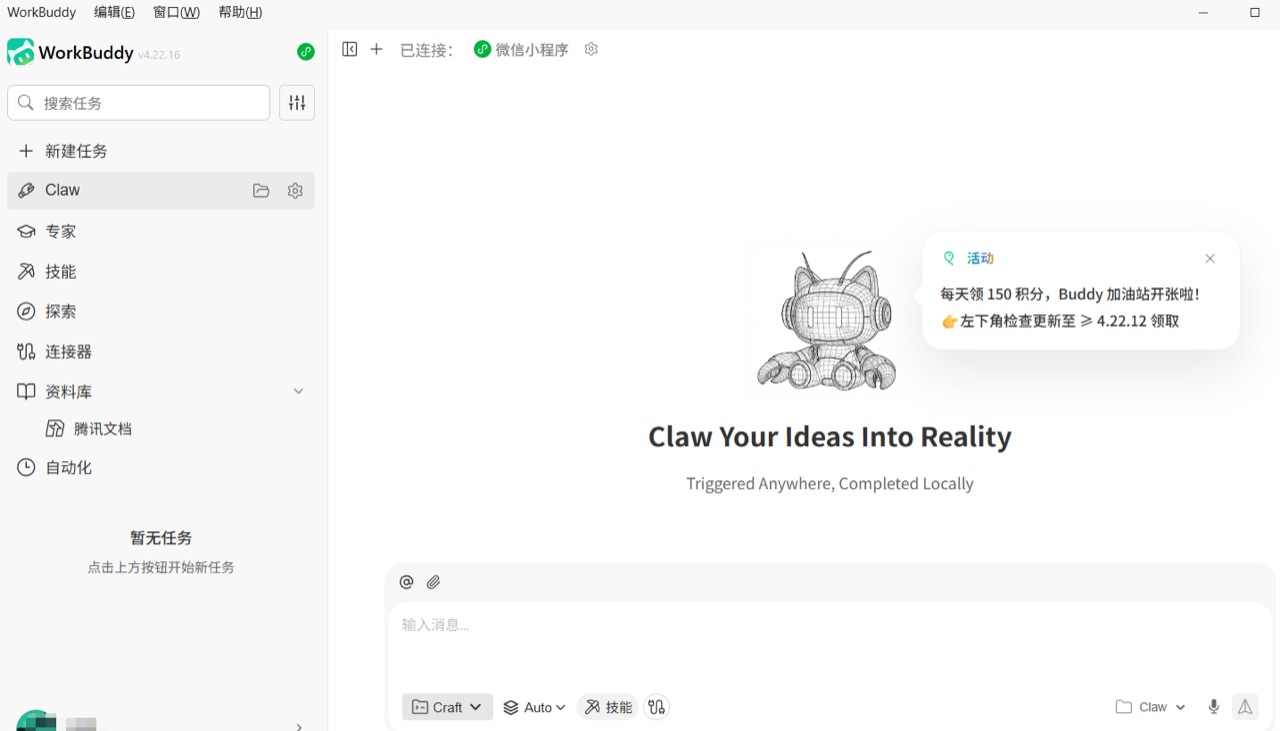
The settings panel lets you configure different communication tools. The key point is that tasks still run on the local computer; the mobile side works as a remote command channel.
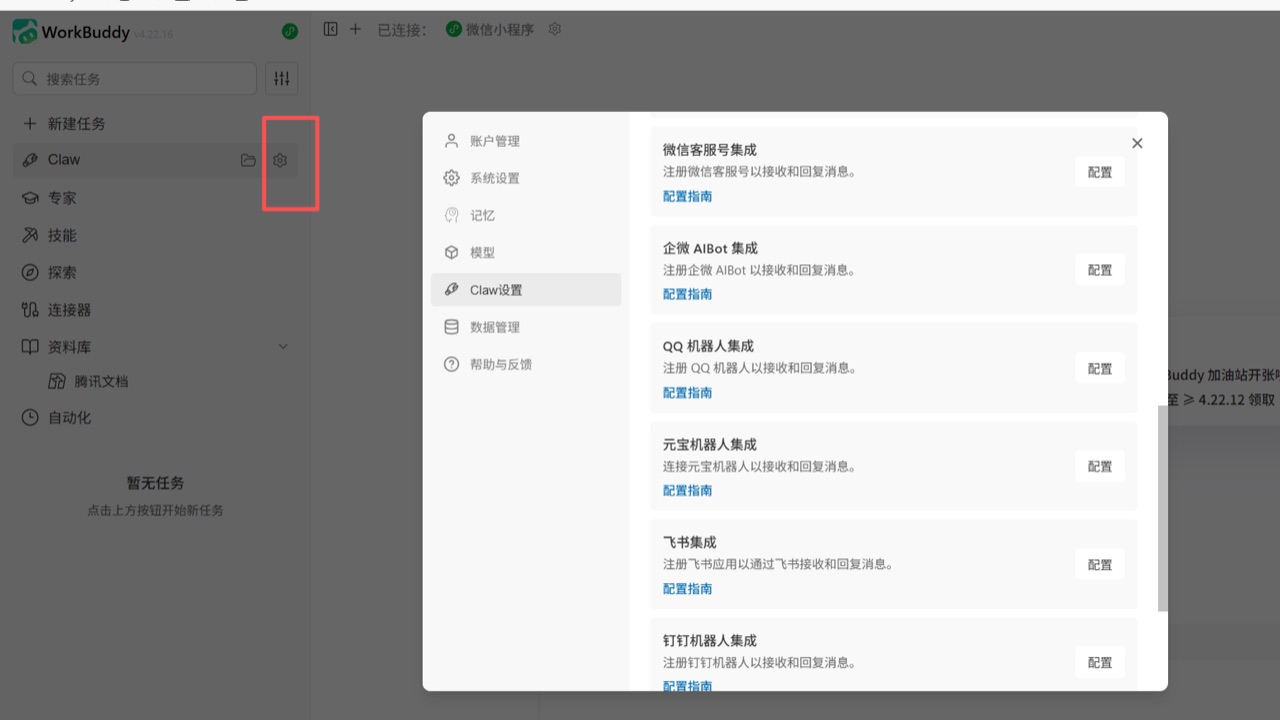
Use the main desktop interface for immediate local work. Use Claw when you need remote triggering, ongoing task visibility, or a centralized channel for mobile instructions.
Expert Center: Let the AI Work in a Specific Role
The Expert Center provides preset experts and expert teams. This is not just a different prompt style. It gives the agent a clearer role, methodology, and workflow for different job types.
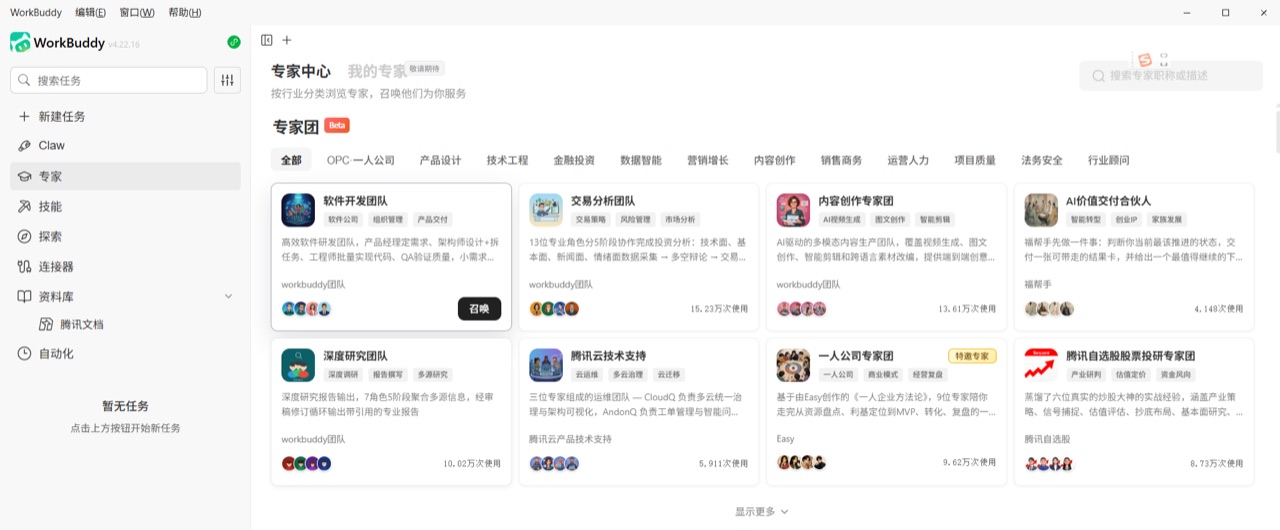
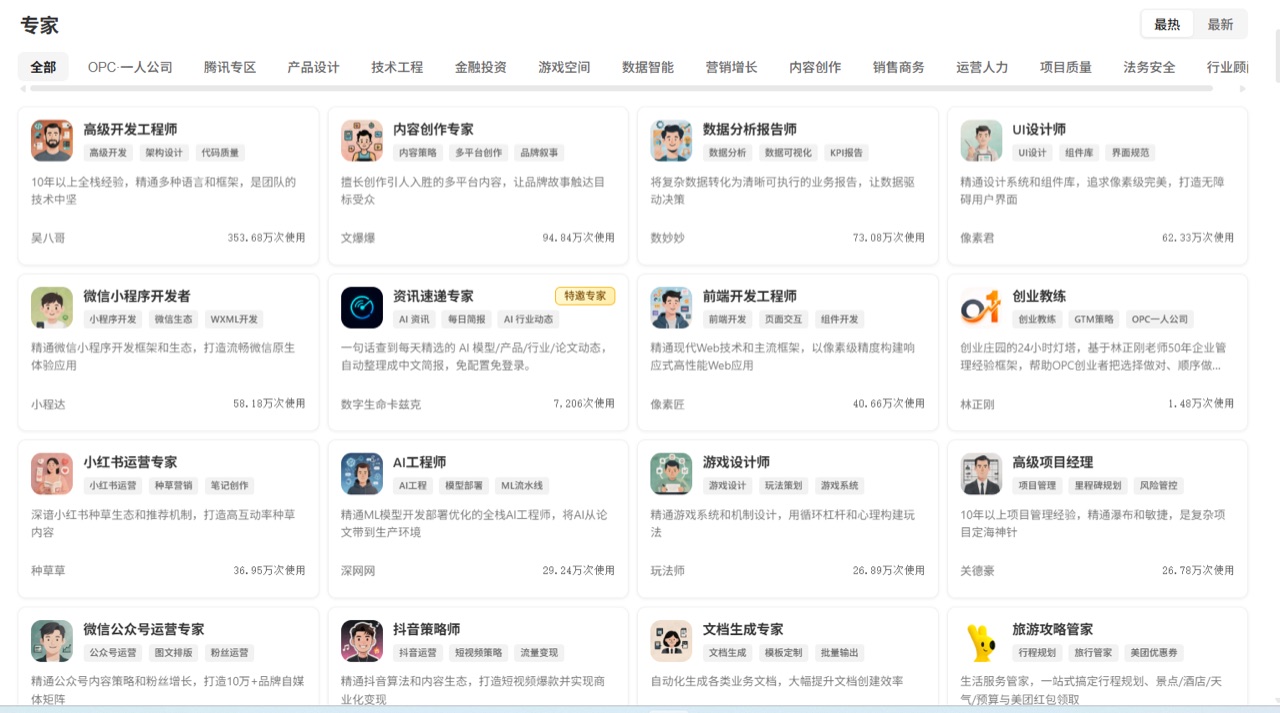
For example, after choosing a product management expert, you can ask it to plan an employee management system. It will first clarify requirements, then produce a product document.
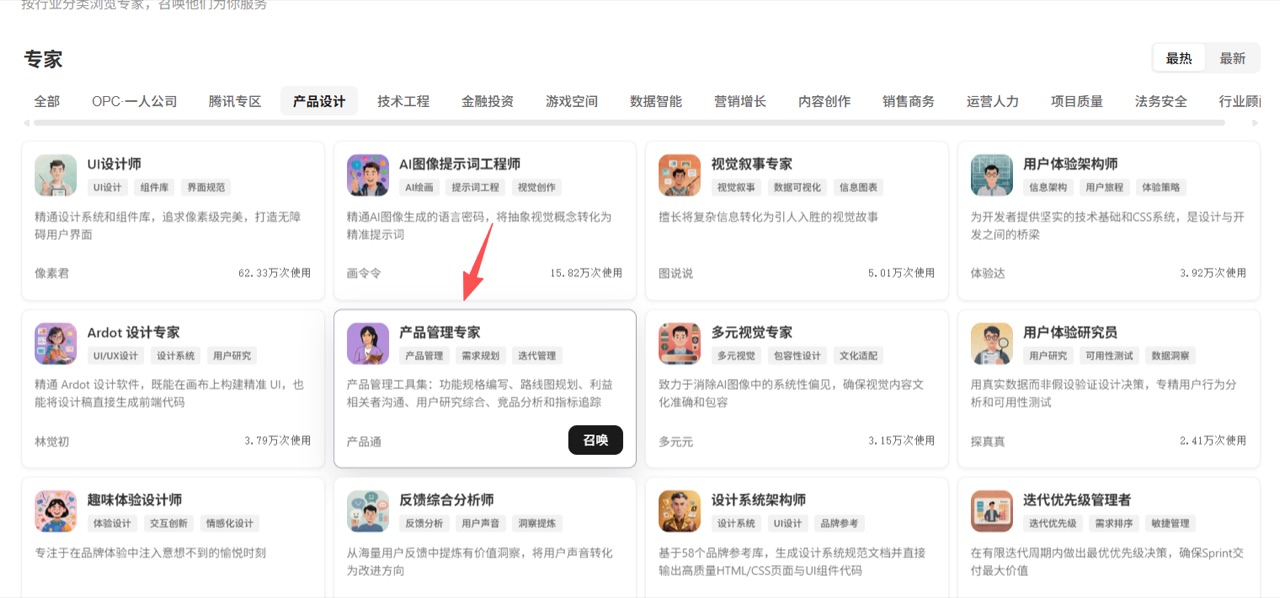
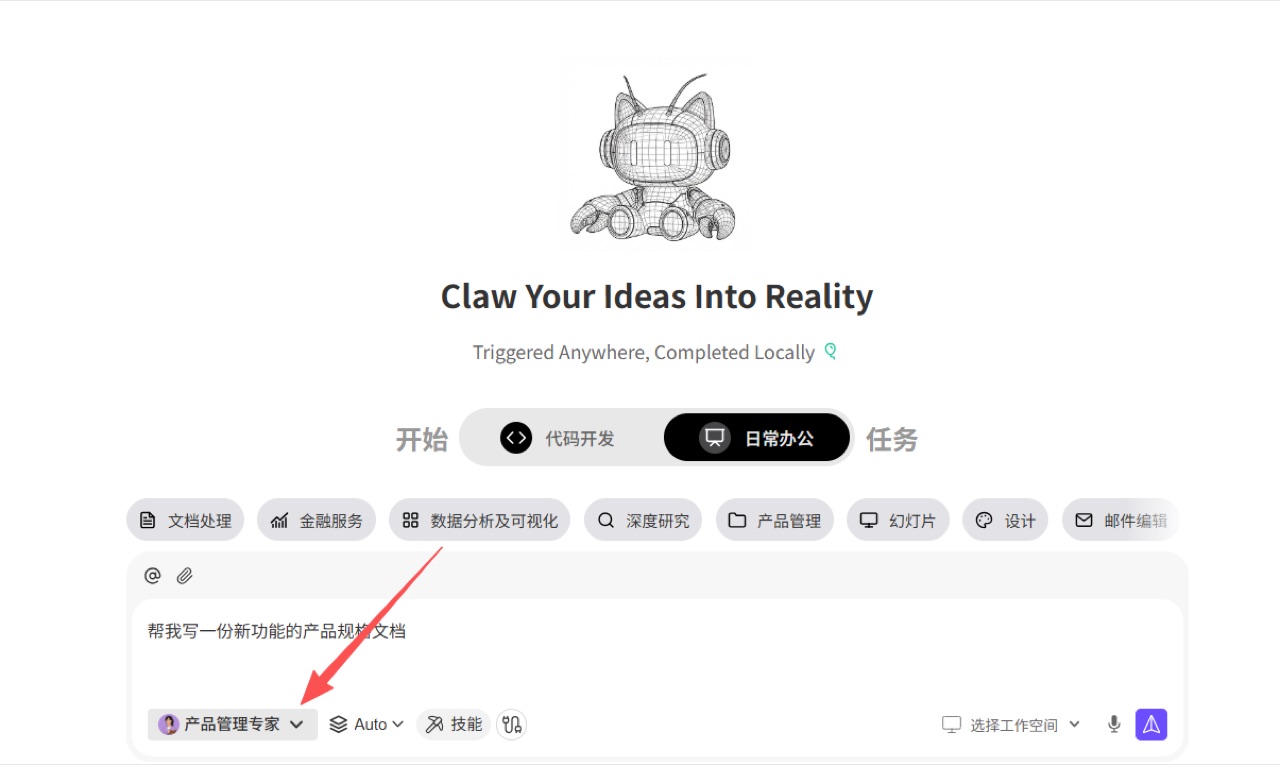
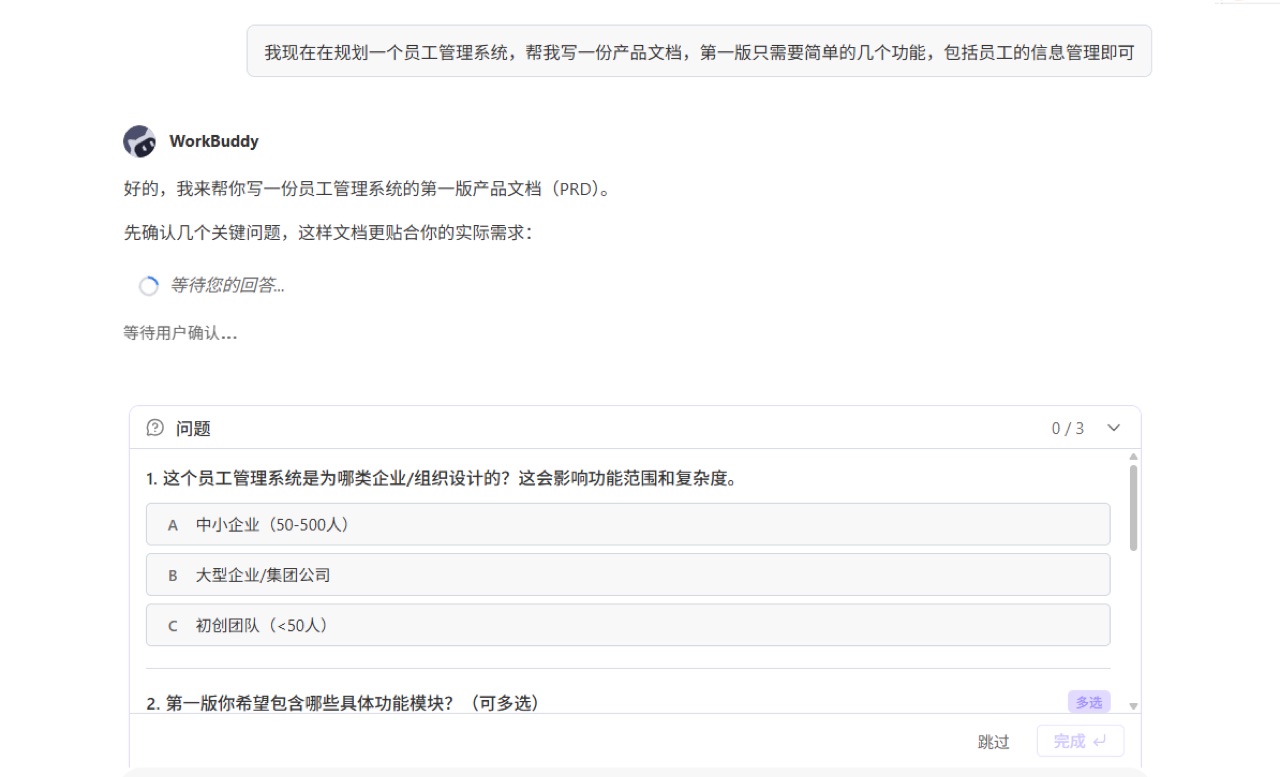
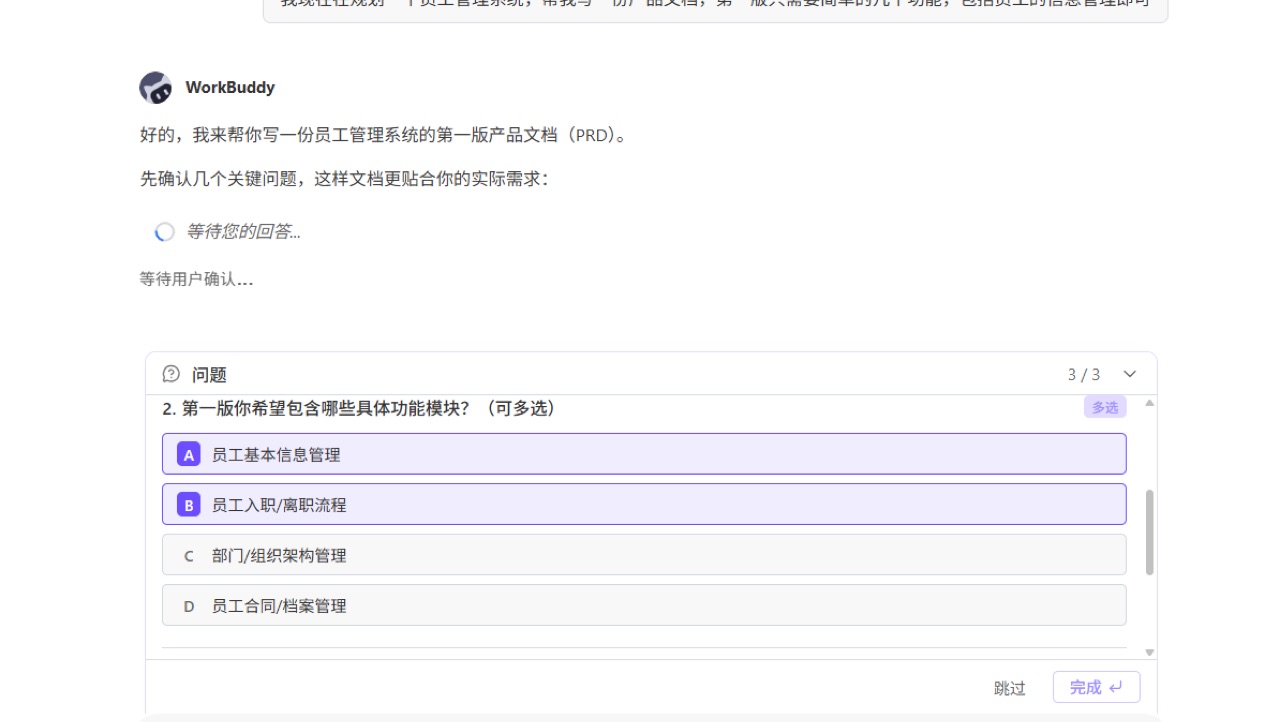
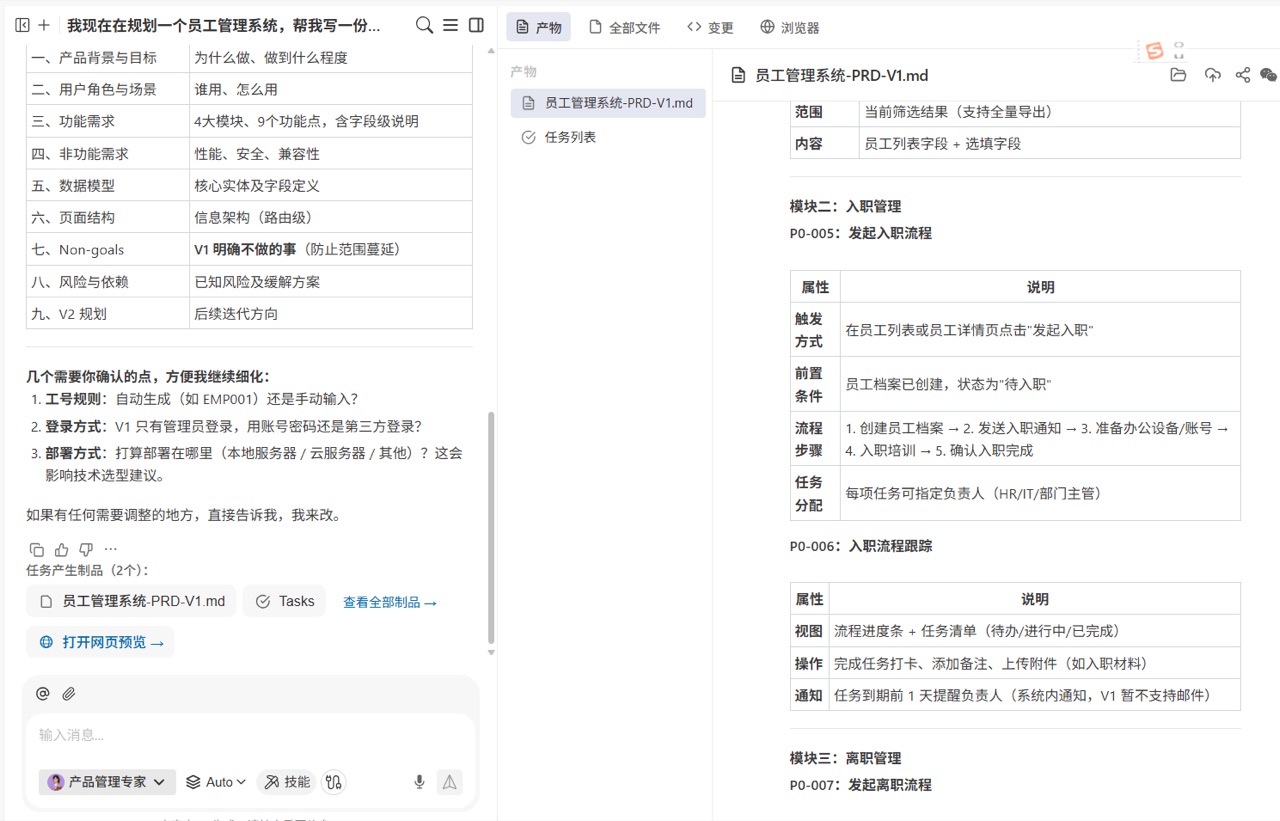
This feature is useful when the requirement is still vague. Instead of asking AI to output a complete plan immediately, let the expert role ask the missing questions first, then move into generation.
Skill Marketplace: Install and Try Existing Capabilities
The Skill marketplace contains ready-made Skills that can expand WorkBuddy quickly.
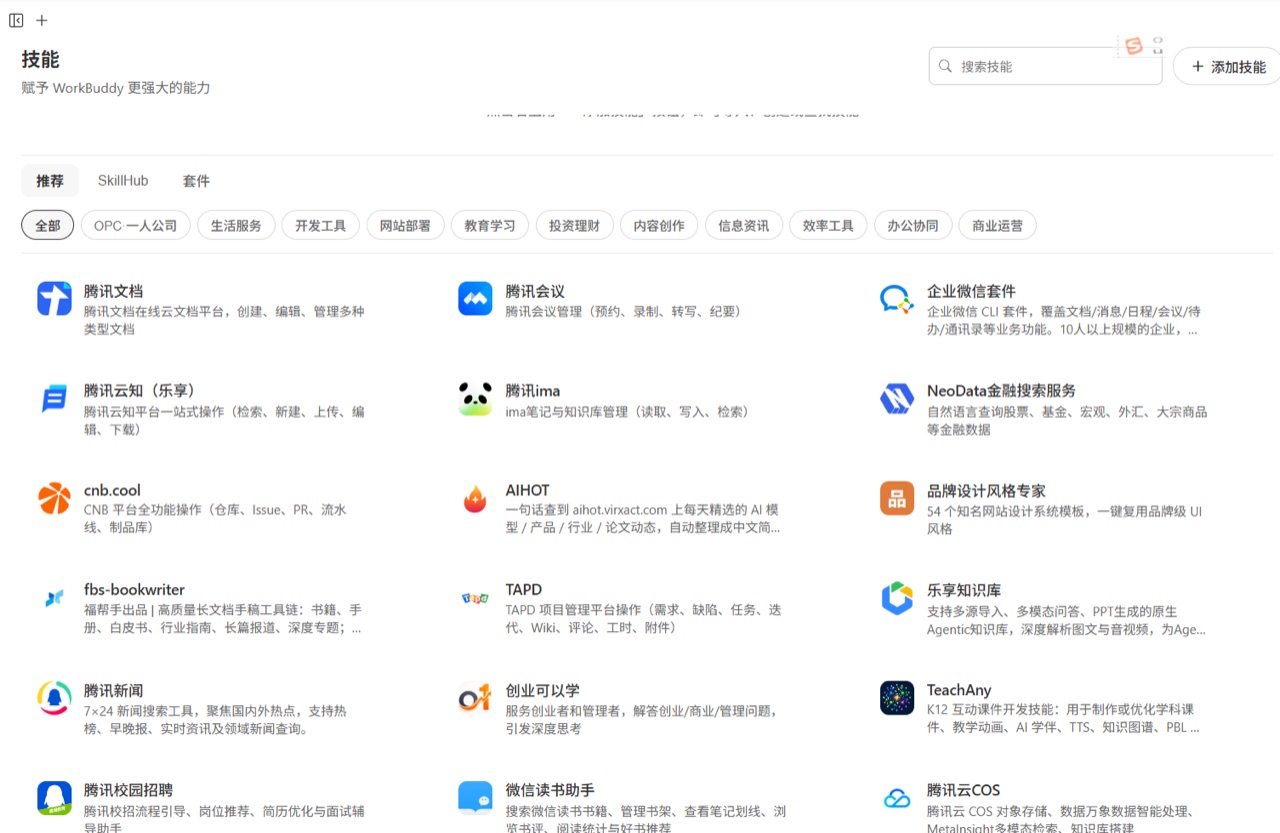
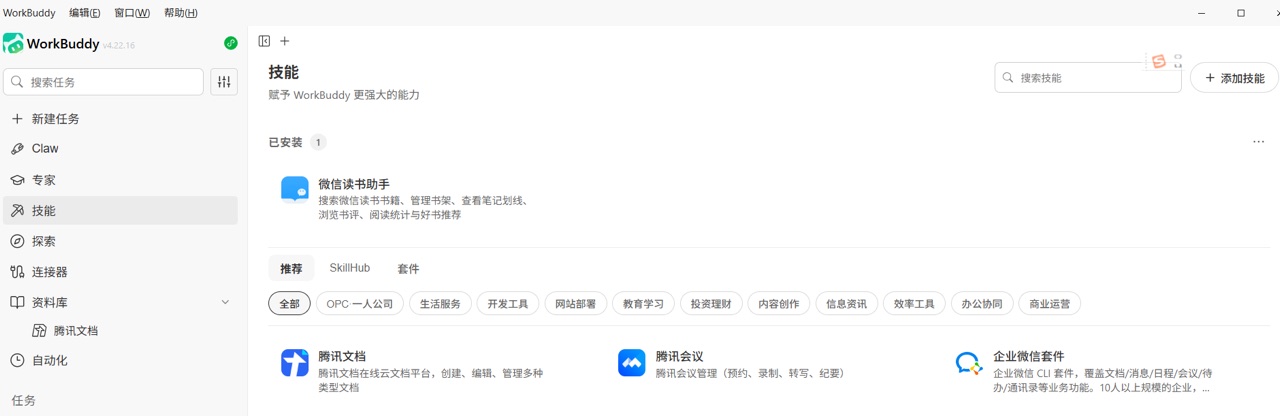
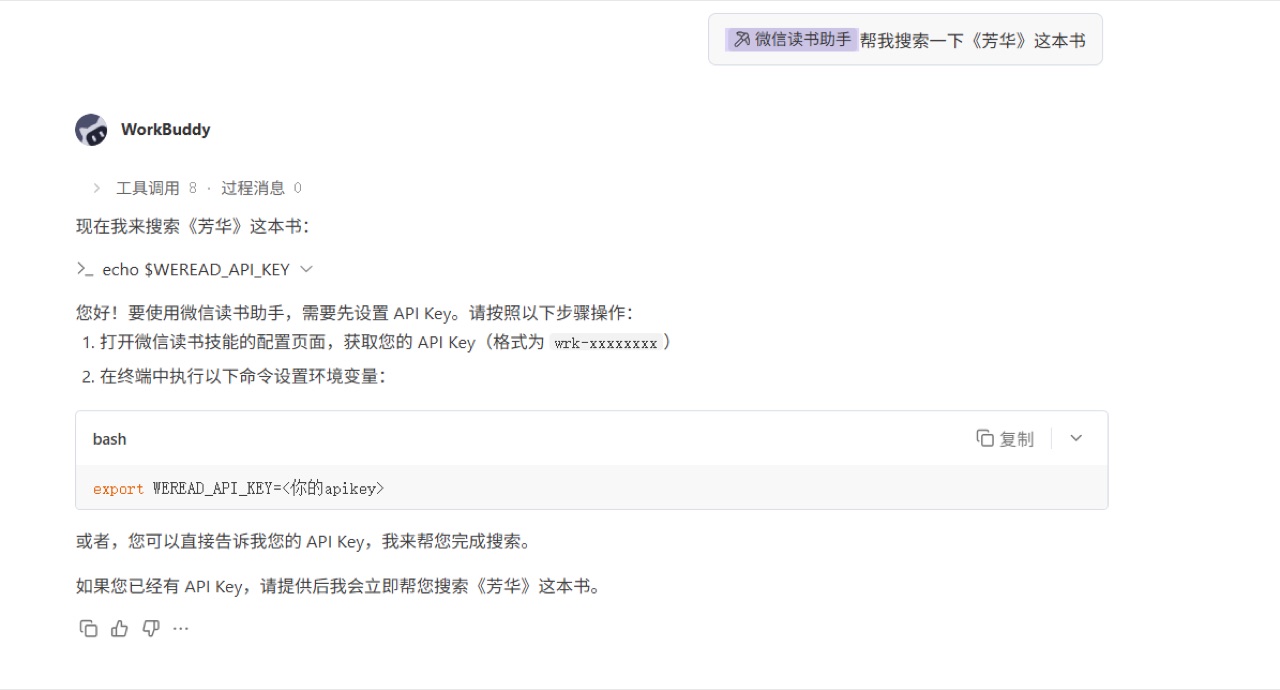
Using the WeRead assistant as an example, after adding it, the Skill appears in "My Skills."
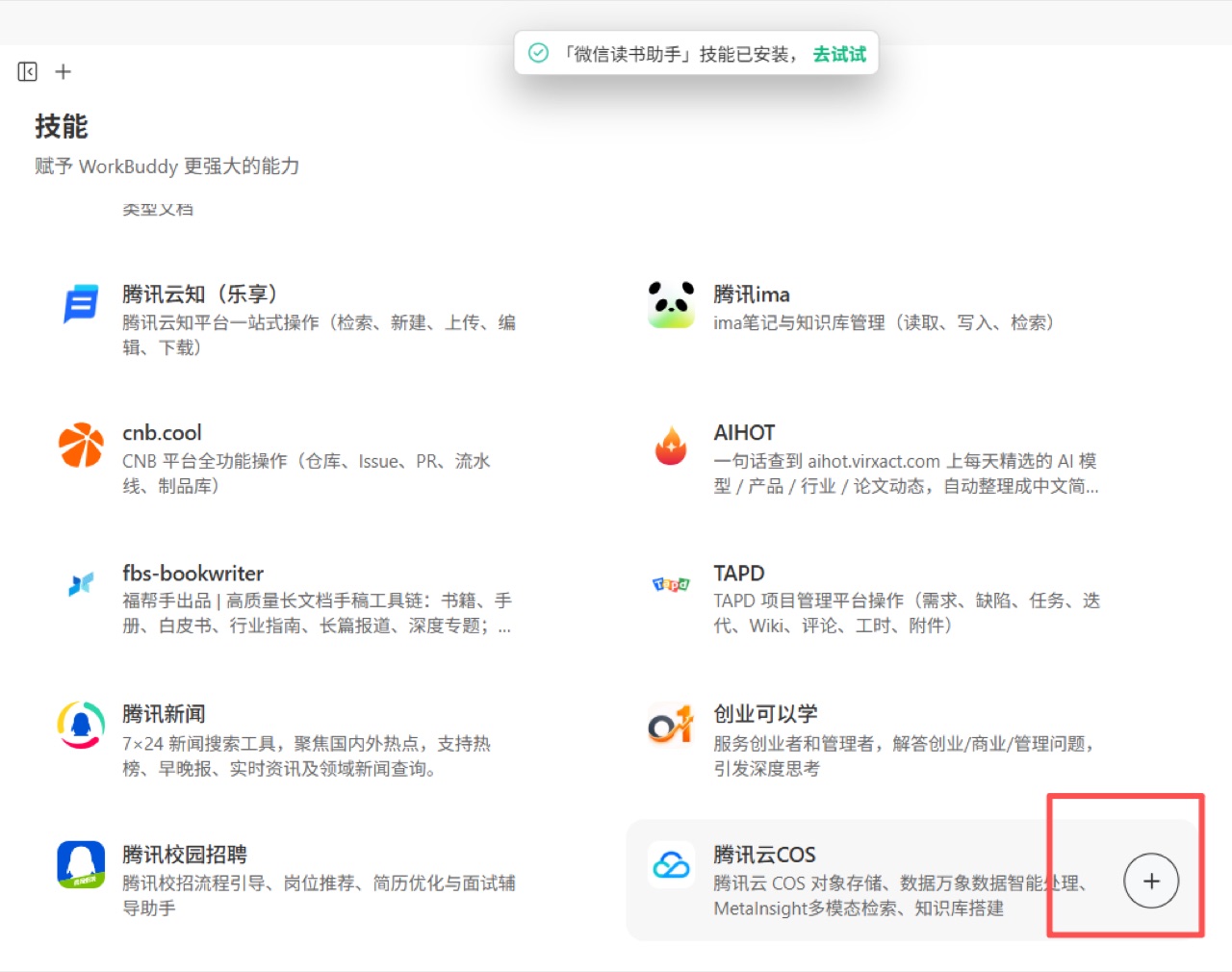
After entering a Skill, click trial mode to call it in the conversation area.
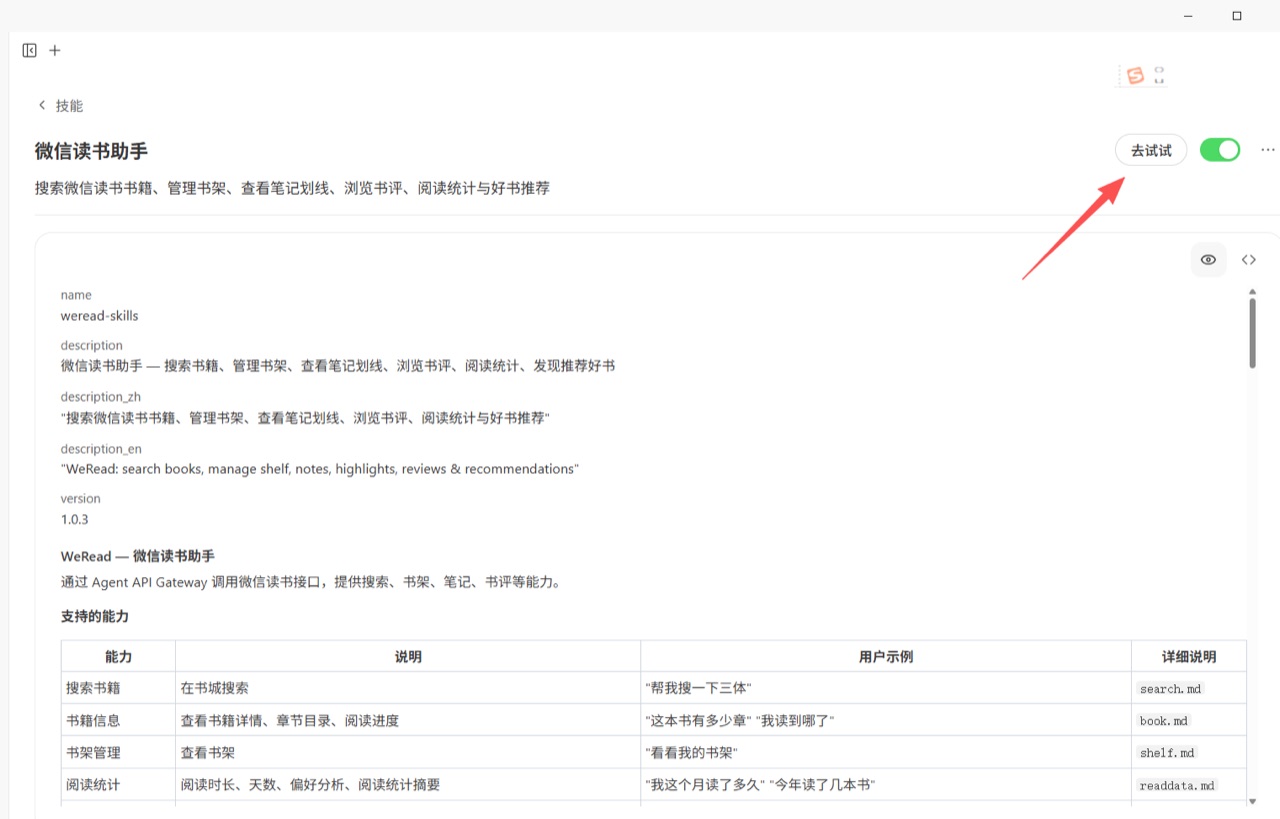
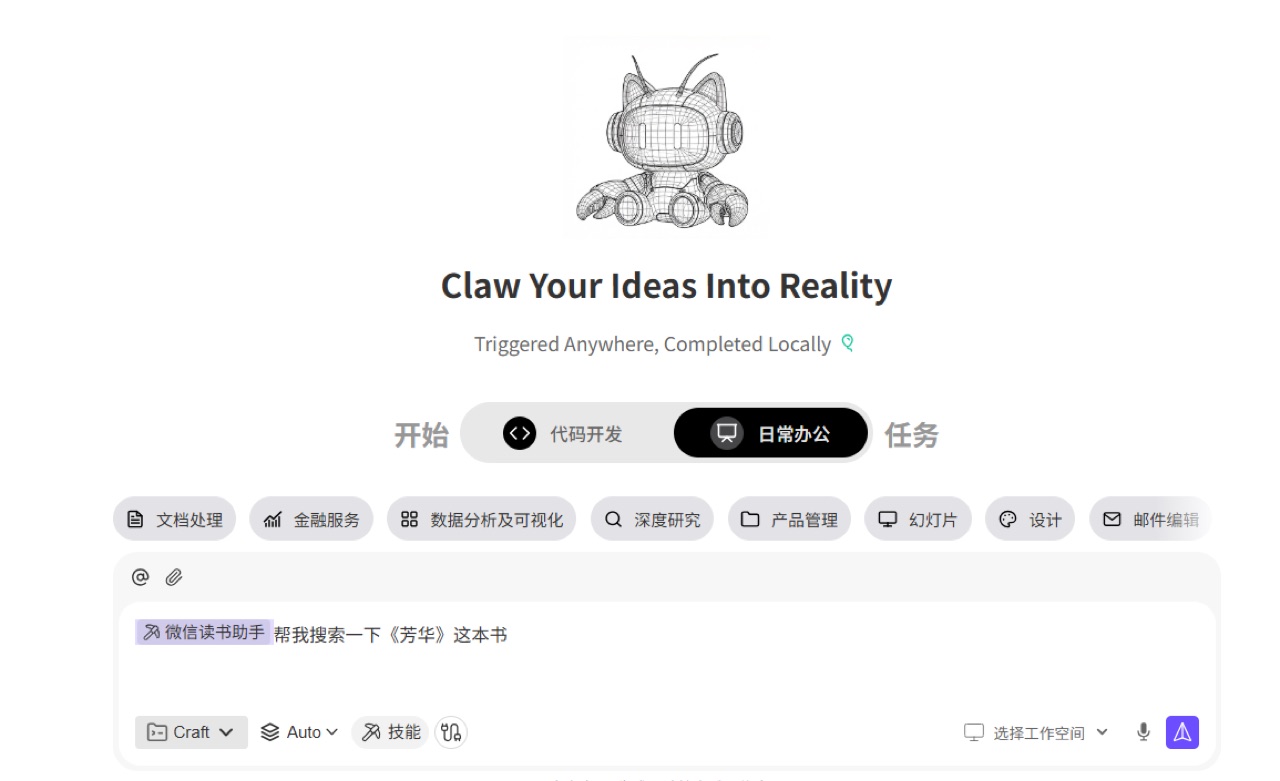
Some Skills require an API key or account permission before first use. Read the configuration instructions carefully; otherwise, the task may stop halfway through execution.
Import Local Skills
In addition to marketplace installation, WorkBuddy can import local Skill packages. This is useful when you already have a stable workflow, such as Excel data processing, content cleaning, or batch renaming.
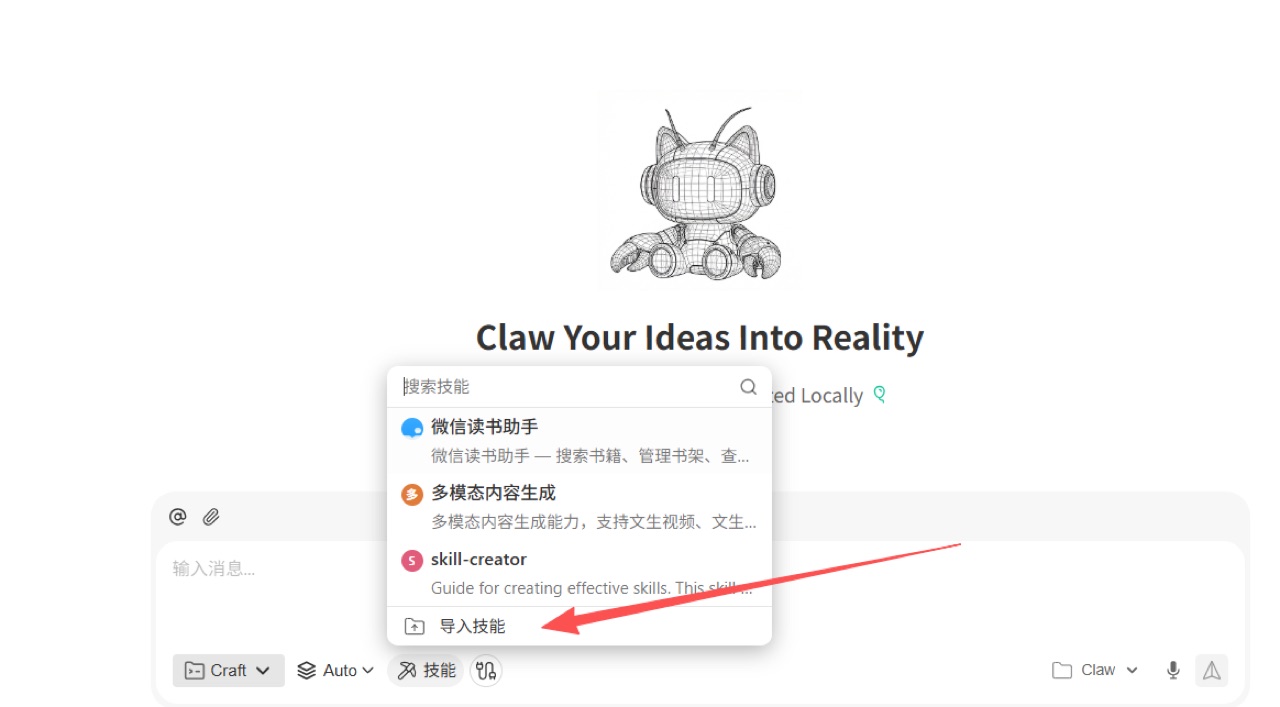
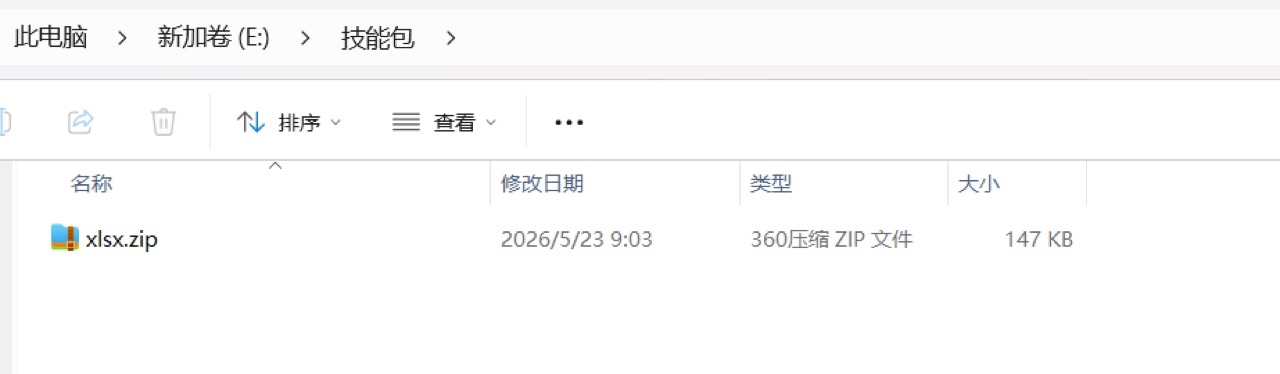
After importing, the Skill can be loaded directly into a task.
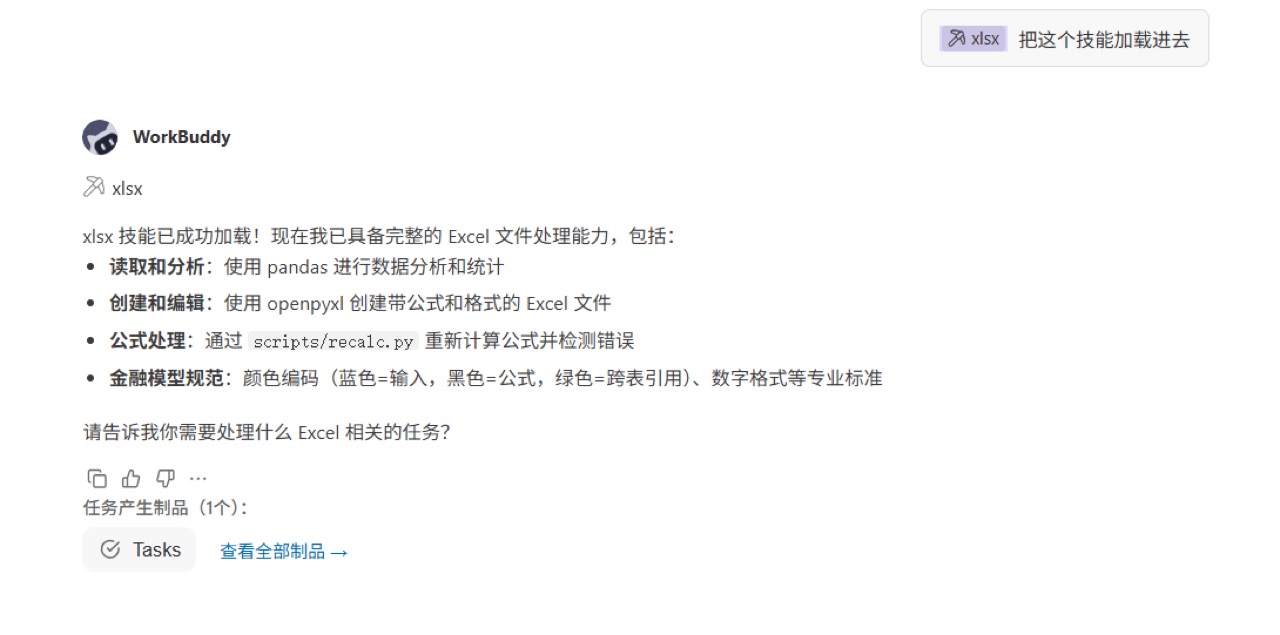
The following example tests Excel data processing: prepare a spreadsheet first, then ask WorkBuddy to use the local Skill to process it.
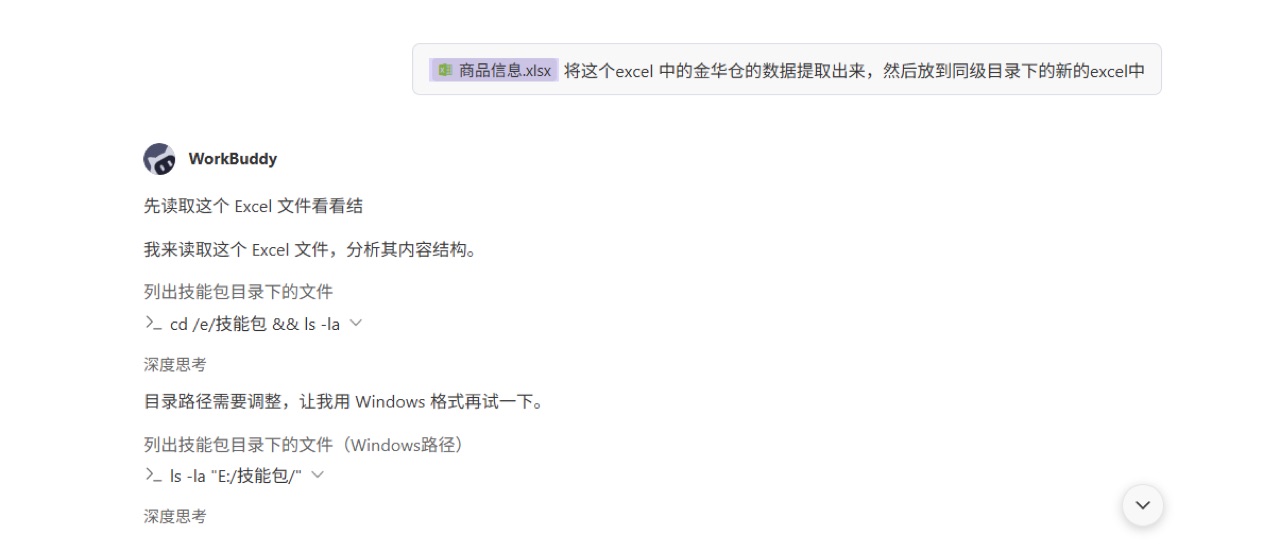
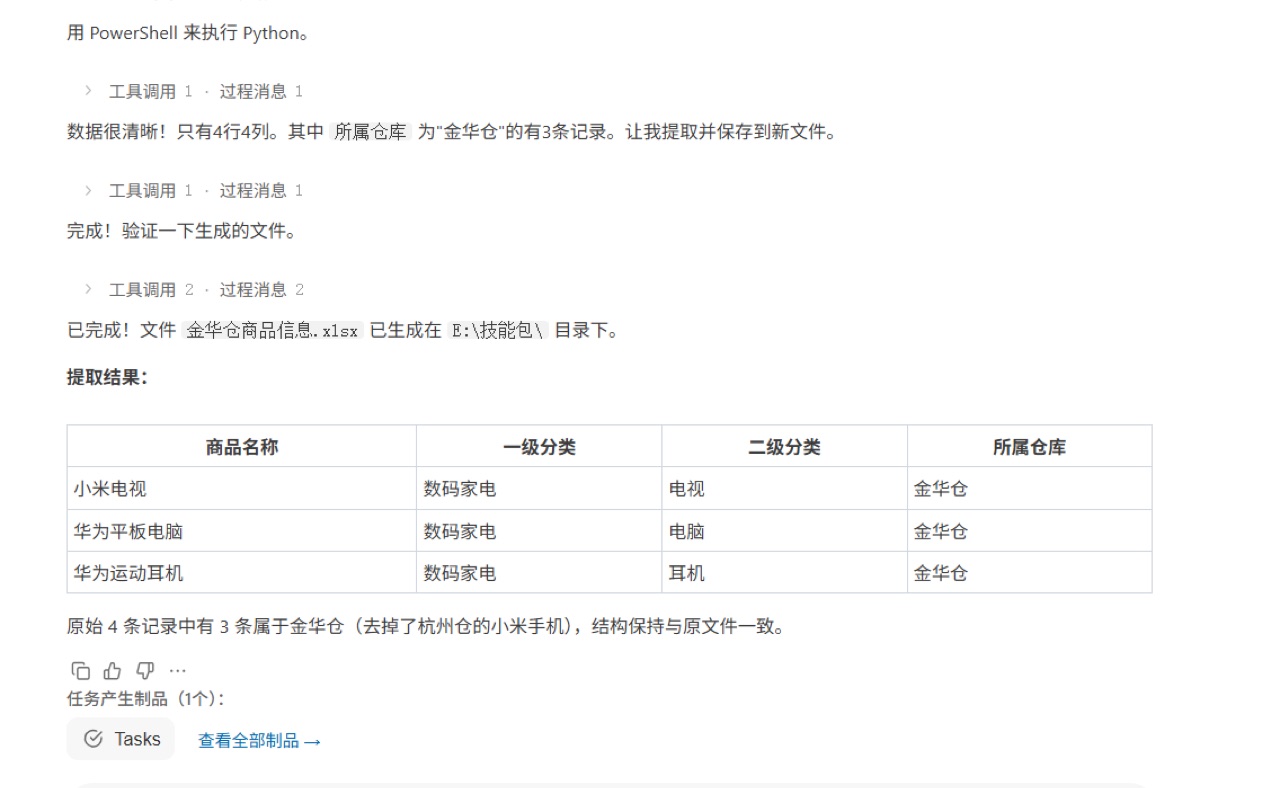
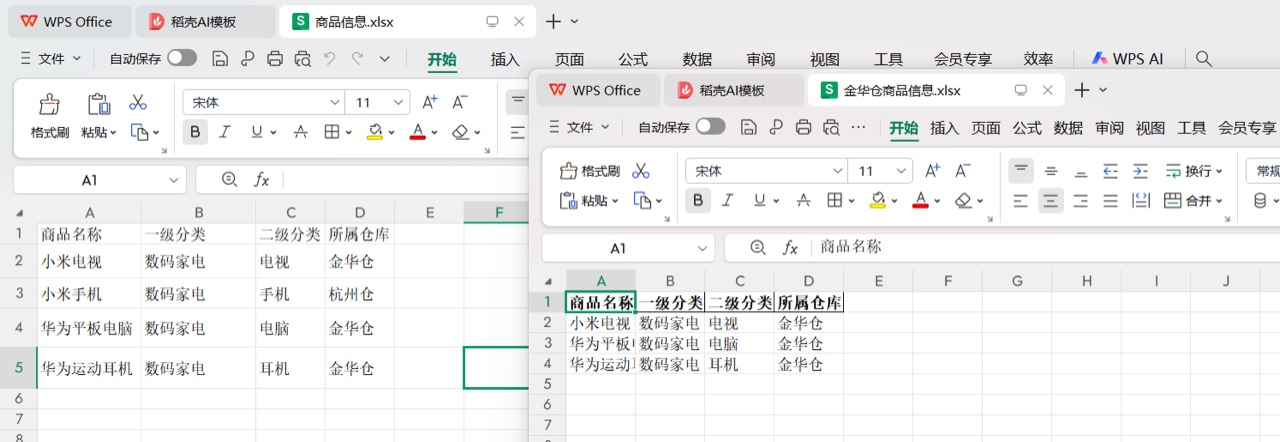
After completion, open the result file and check whether the data has been organized into the new spreadsheet as expected.
Explore: Reuse Finished Workflows from Others
If you do not know where to start, open "Explore" first. It shows finished WorkBuddy examples made by other users, which you can reuse to generate your own version.
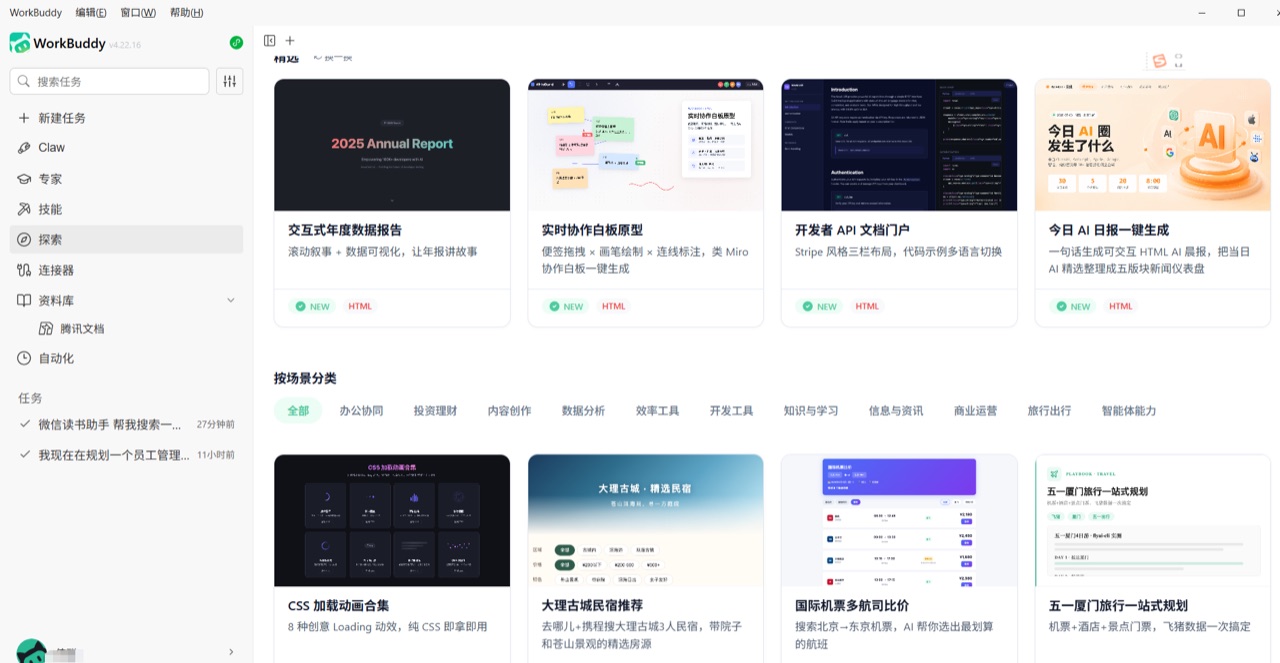
After choosing an example, the system can prefill the Prompt, linked Skills, and expert configuration. This reduces the cost of starting from a blank workspace.
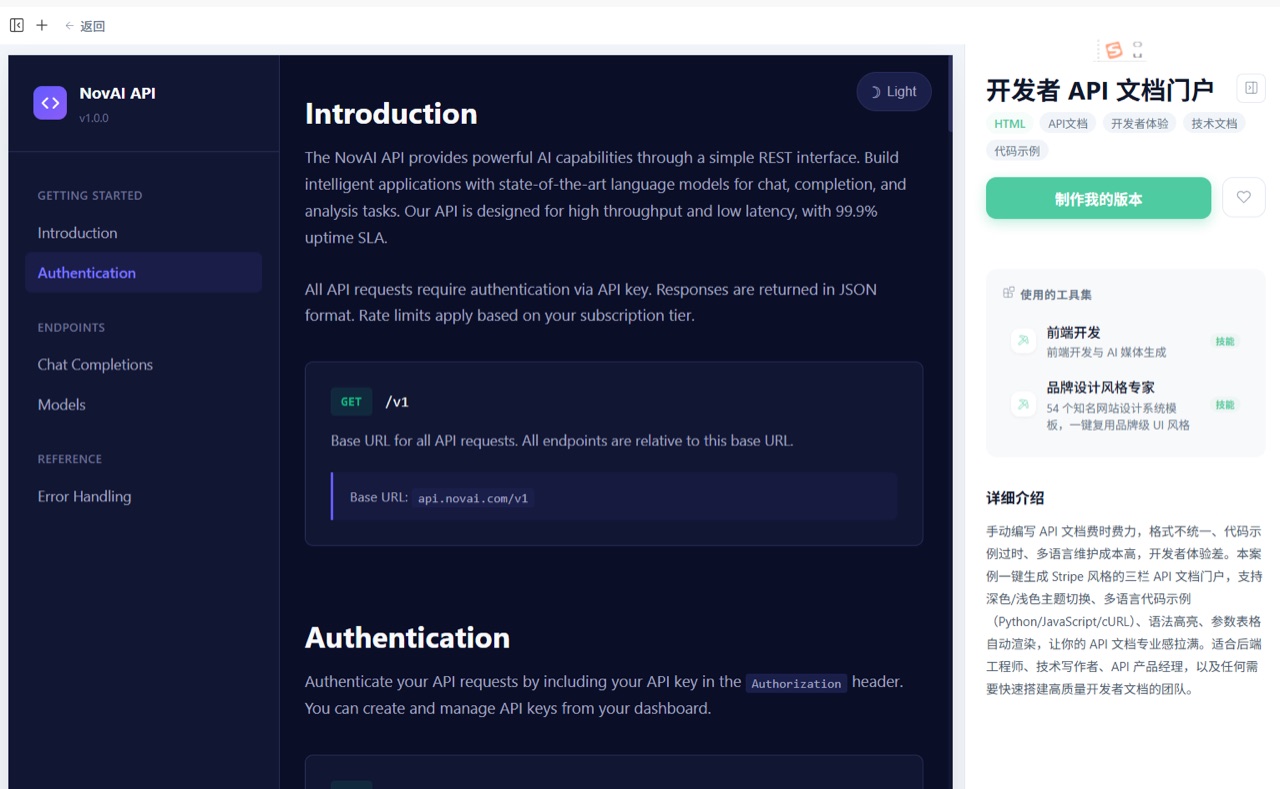
This is useful for beginners and for teams that want to turn repeated workflows into internal templates. Once a frequent process becomes a reusable artifact, other team members can copy it instead of rebuilding it from scratch.
Connectors: Link Email and Third-Party Services
Connectors are the bridge between WorkBuddy and external systems. They can bring email, documents, project management tools, cloud drives, and other services into the AI workflow.
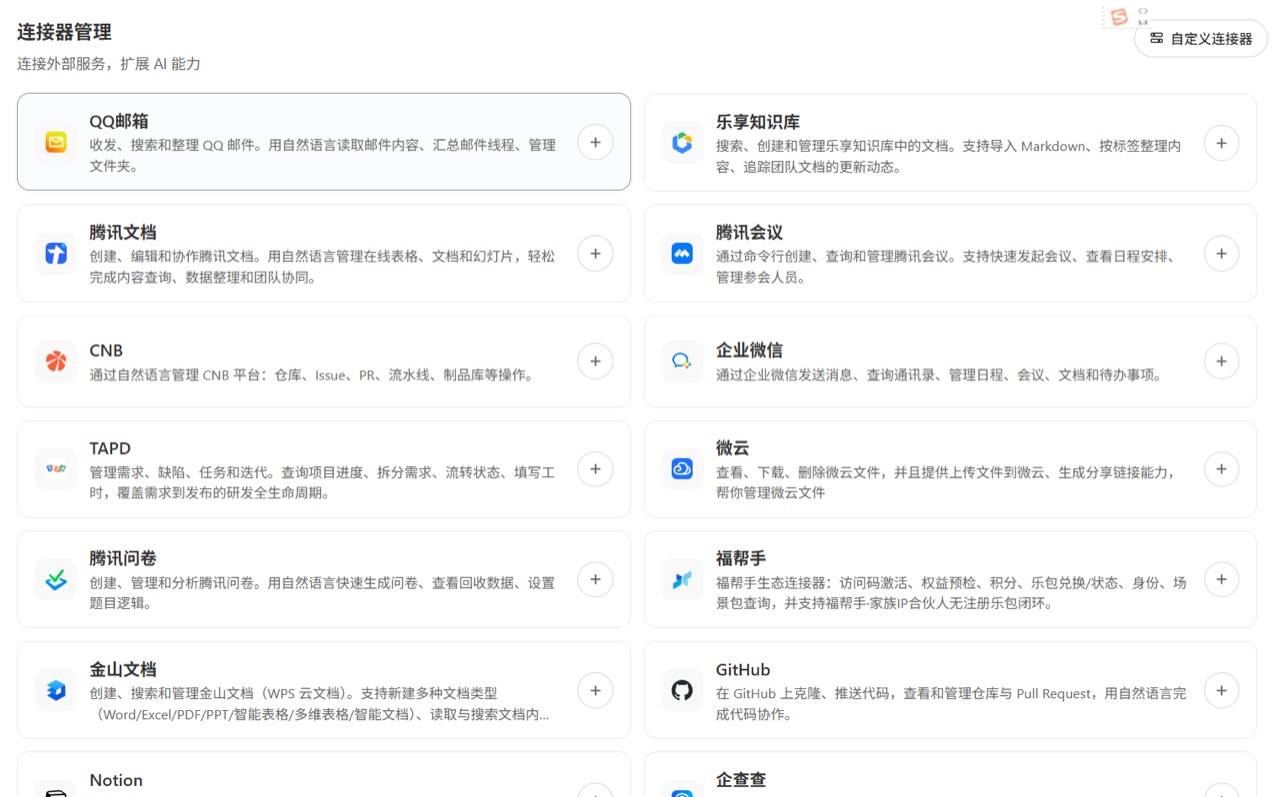
Using QQ Mail as an example, click the add button on the connector card to enter the authorization flow.
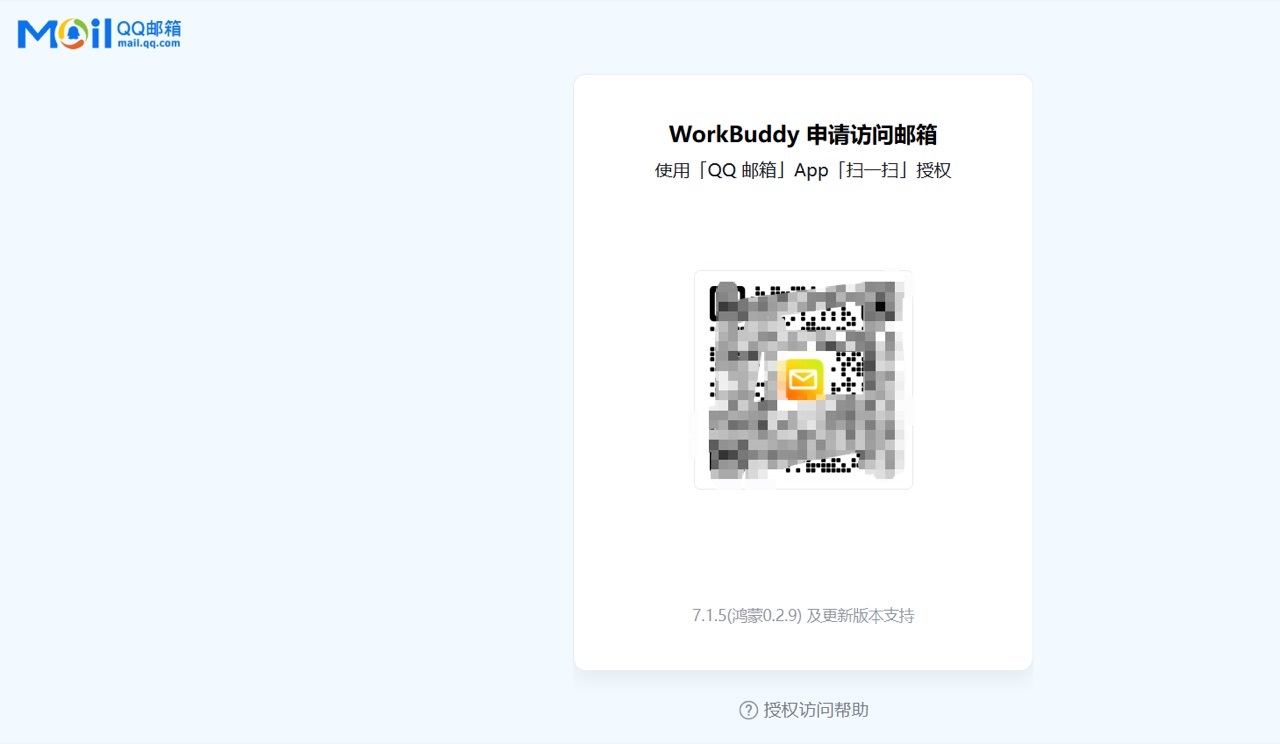
When scanning the QR code on mobile, check the requested permissions carefully, such as reading recent emails, sending emails, and accessing account information. Email permissions are sensitive, so enable them only when mail automation is genuinely needed.
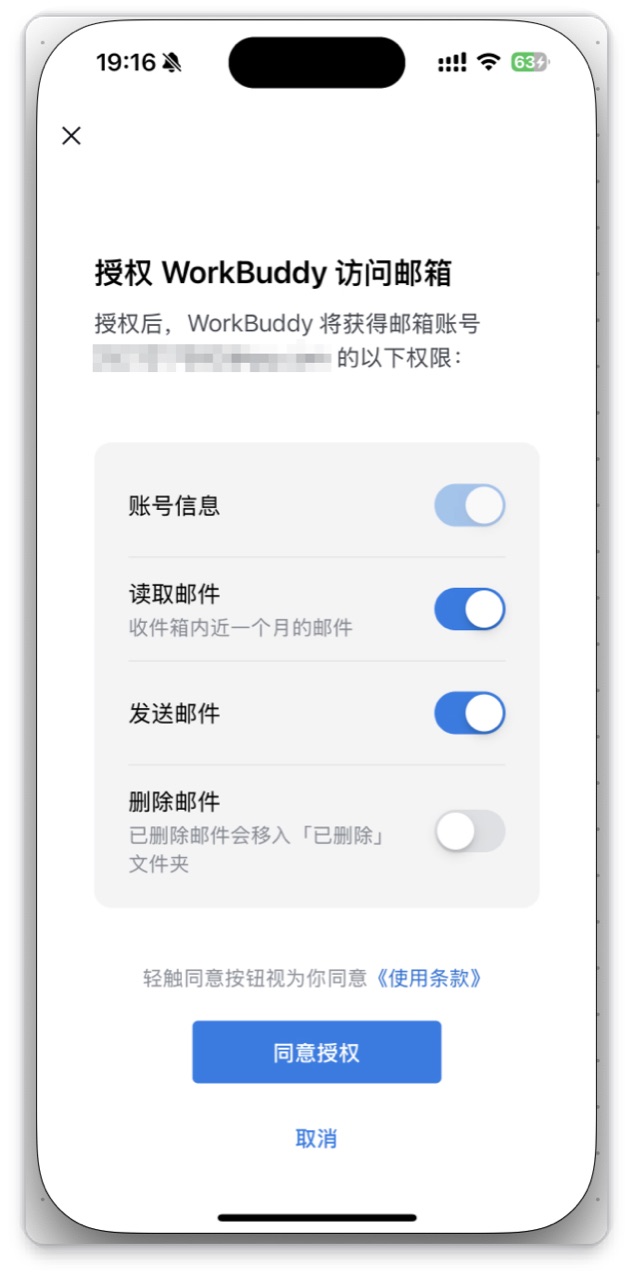
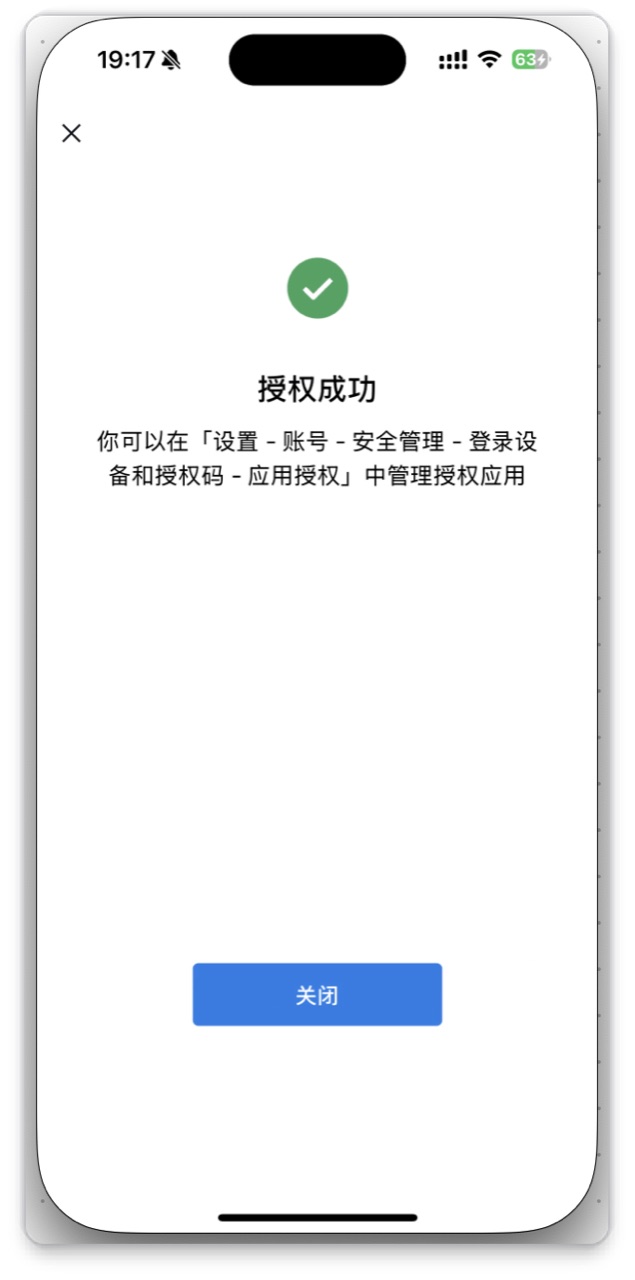
After authorization, the QQ Mail card shows a connected status. From that point, WorkBuddy can perform email-based tasks such as summarizing unread messages, drafting replies, or sending notifications.

Automation: Run Repeated Work on a Schedule
Automation is designed for recurring tasks, such as daily AI news summaries, weekly reports, data organization, and scheduled reminders. After configuring the time and task description, WorkBuddy can run the task according to the schedule.
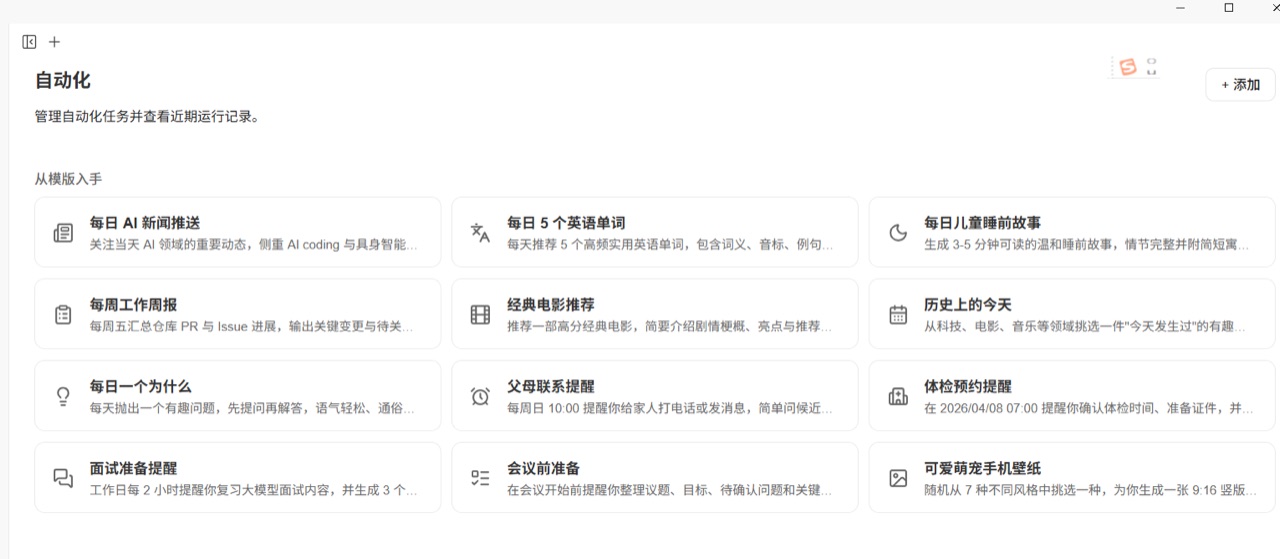
You can start from a template, then adjust the trigger time, task description, and output location.
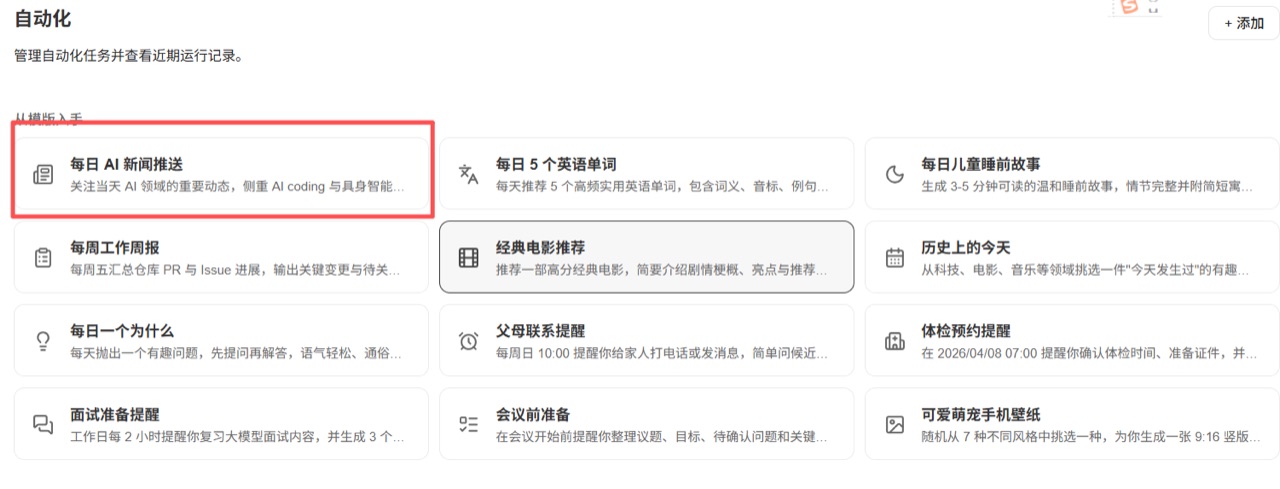
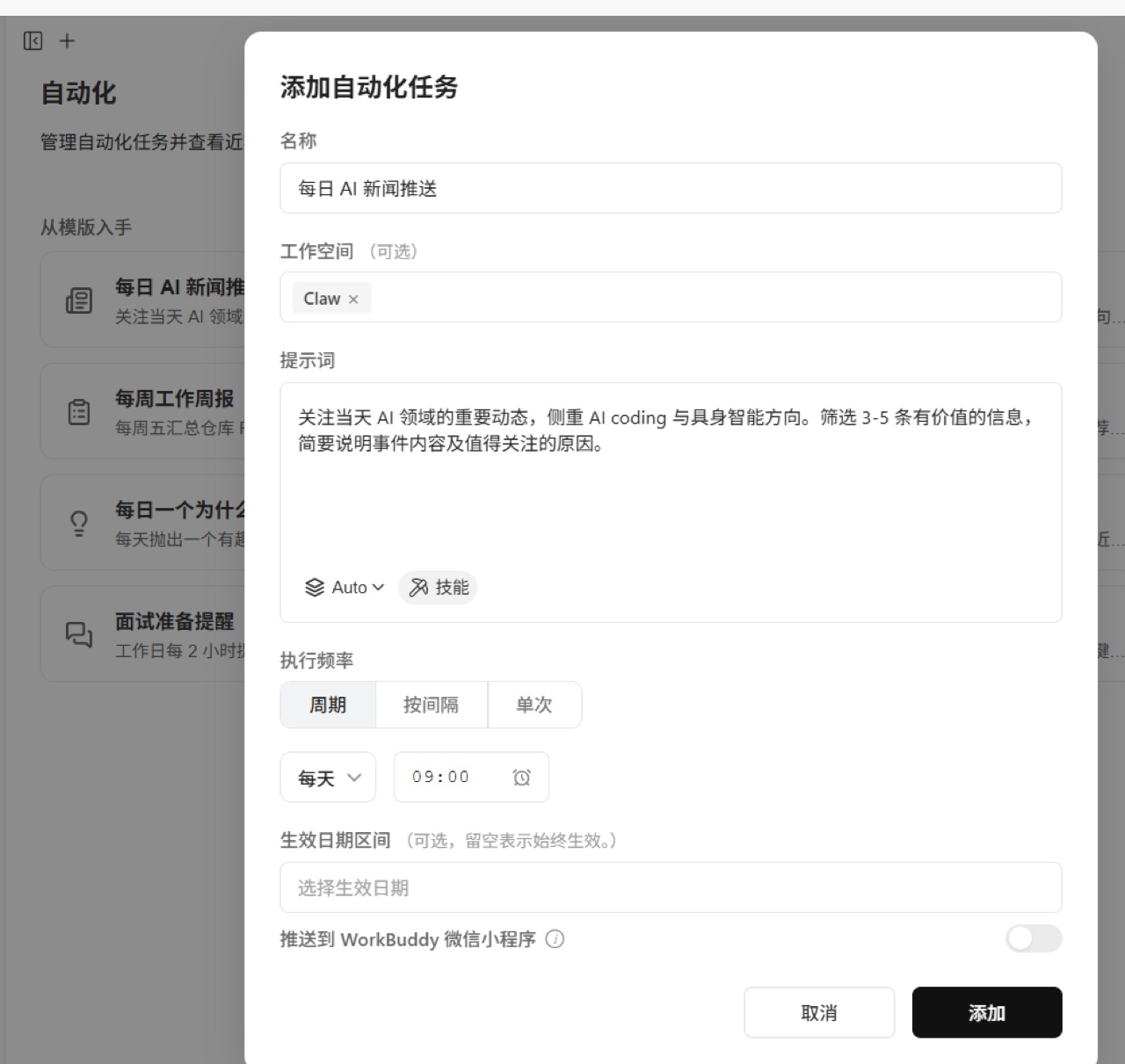
After creation, the task appears in the automation list.
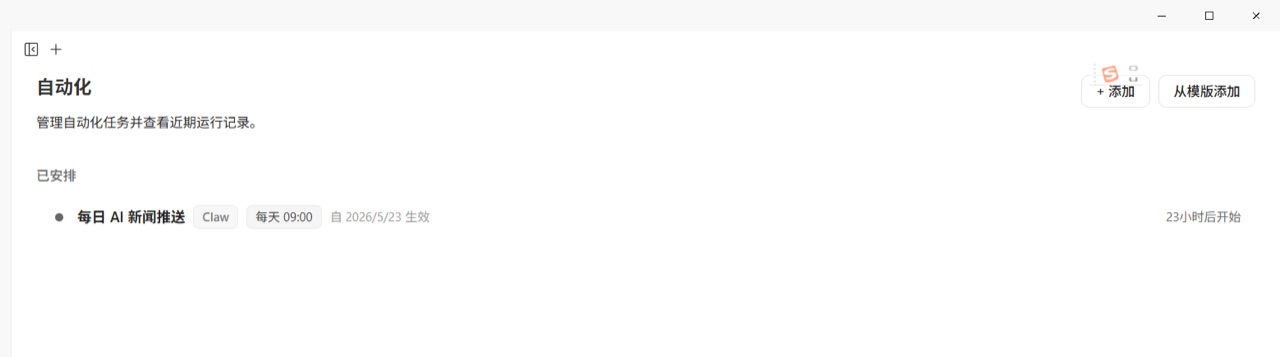
Before enabling it for regular use, run a manual test once. Confirm that the output, save path, and permissions all work correctly.
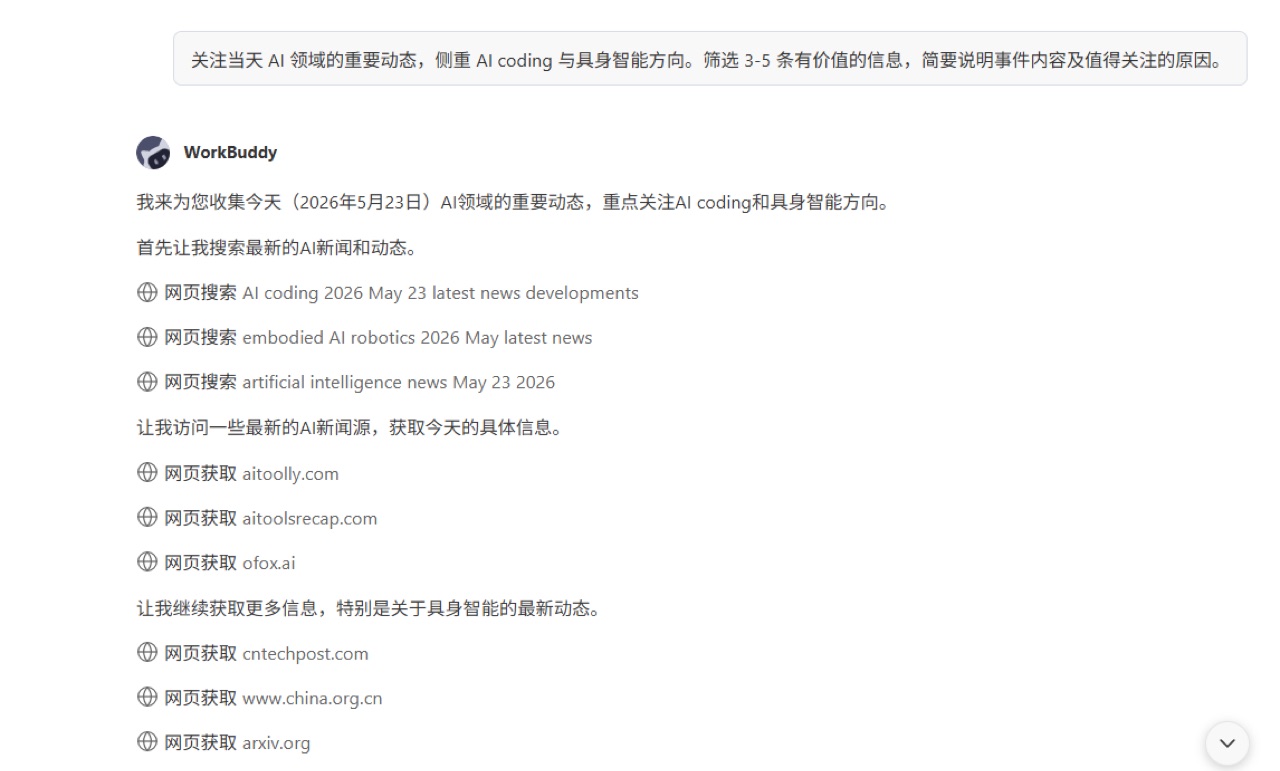
After the test completes, you can inspect the AI-generated result.
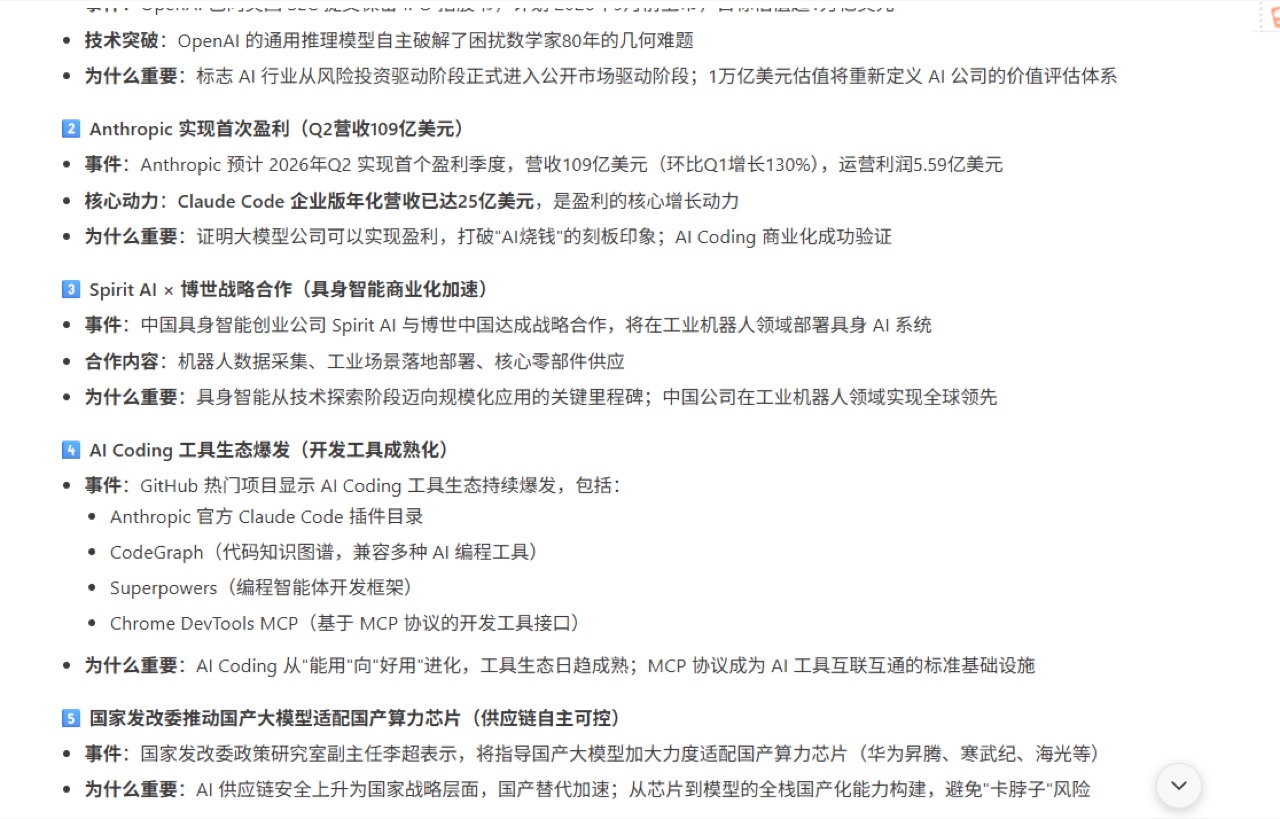
Practical Tips
WorkBuddy is powerful because it can operate close to your desktop workflow, but that also means permissions and task boundaries matter. In real use, keep these rules in mind:
- test with a low-risk folder first instead of granting broad access to sensitive files
- define the output format, save path, and acceptance criteria for complex tasks
- check permission scope before connecting email, communication tools, cloud documents, or similar services
- turn high-frequency tasks into Skills or automation; use the main chat for one-off tasks
- use Expert Center when the requirement is unclear; use normal tasks when the goal is already specific
Summary
WorkBuddy's direction is clear: move AI from "answering questions" toward "executing office work." Once installation, login, task execution, Skills, Claw, expert agents, connectors, and automation are combined, it becomes more than a chat box. It becomes an AI workspace built around the local computer and daily office workflows.
For individual users, the best starting points are report generation, file organization, spreadsheet processing, and automated summaries. For teams, the bigger value is turning stable workflows into Skills, expert templates, and automation tasks, so AI can reuse team knowledge instead of forcing everyone to start with a blank prompt.
This is a rewritten and reorganized version for Finding AI Tools. The original walkthrough screenshots and reference material come from the CSDN article: 《【AI智能体】全场景AI智能体工作台WorkBuddy实战操作详解》. Original author: zhangcongyi420. Original license: CC 4.0 BY-SA.
Source: https://blog.csdn.net/zhangcongyi420/article/details/161335906
GPT-5.5 vs Gemini 3.1 Pro: Performance, Cost, and Privacy Compared
NextGoogle I/O 2026 Recap: Gemini 3.5, AI Search, Smart Glasses, and Developer Tools